
The 404 template gives visitors a clear recovery path when a page no longer exists or a URL is incorrect. Use it to explain the missing page and send the visitor to an approved destination.
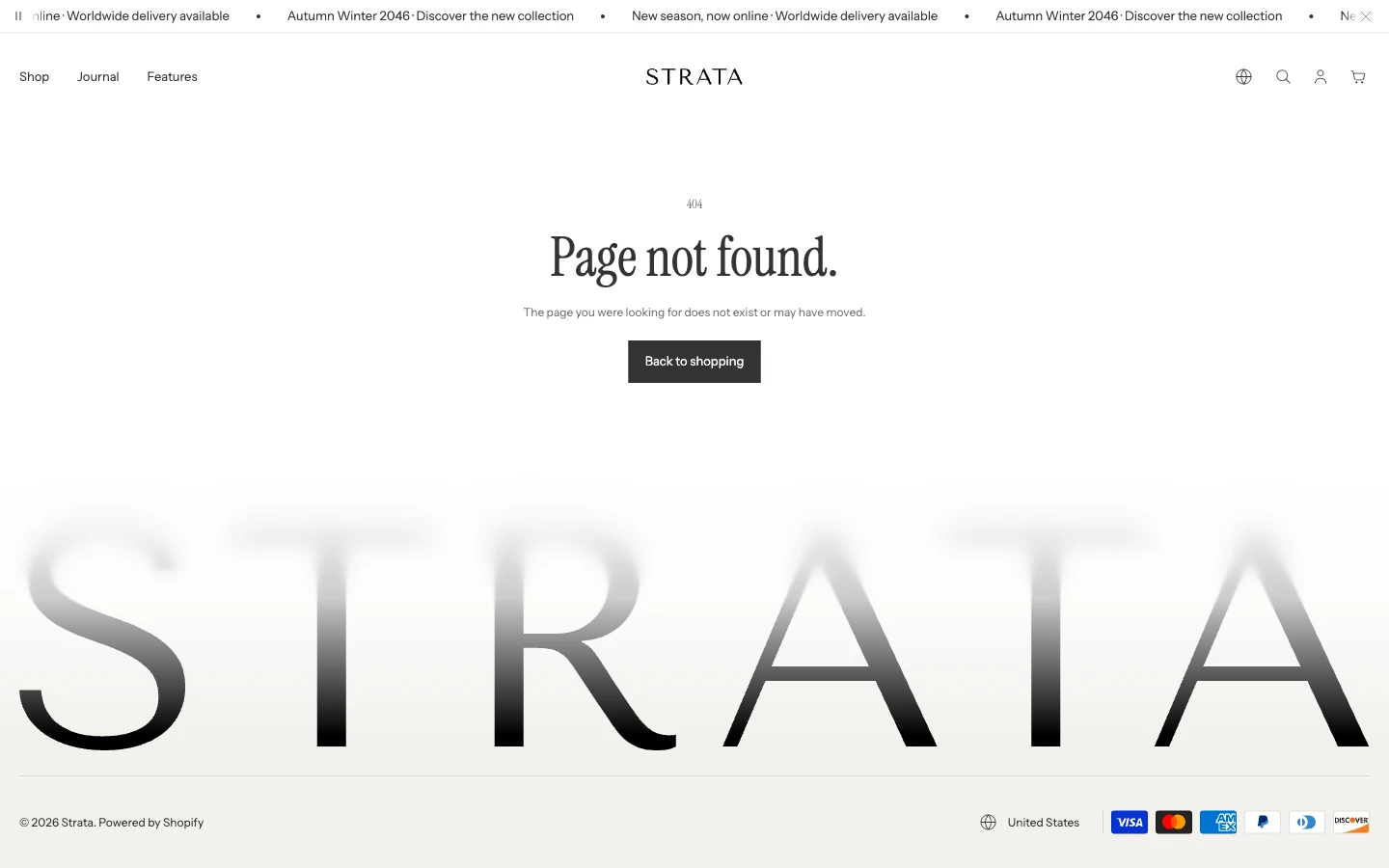
The 404 template on desktop.
Open the 404 template
- From Shopify admin, go to Online Store > Themes > Edit theme.
- Use the page selector to open 404 page.
- Select the 404 section.
- Preview the page with and without an image and verify the return link before saving.
Content
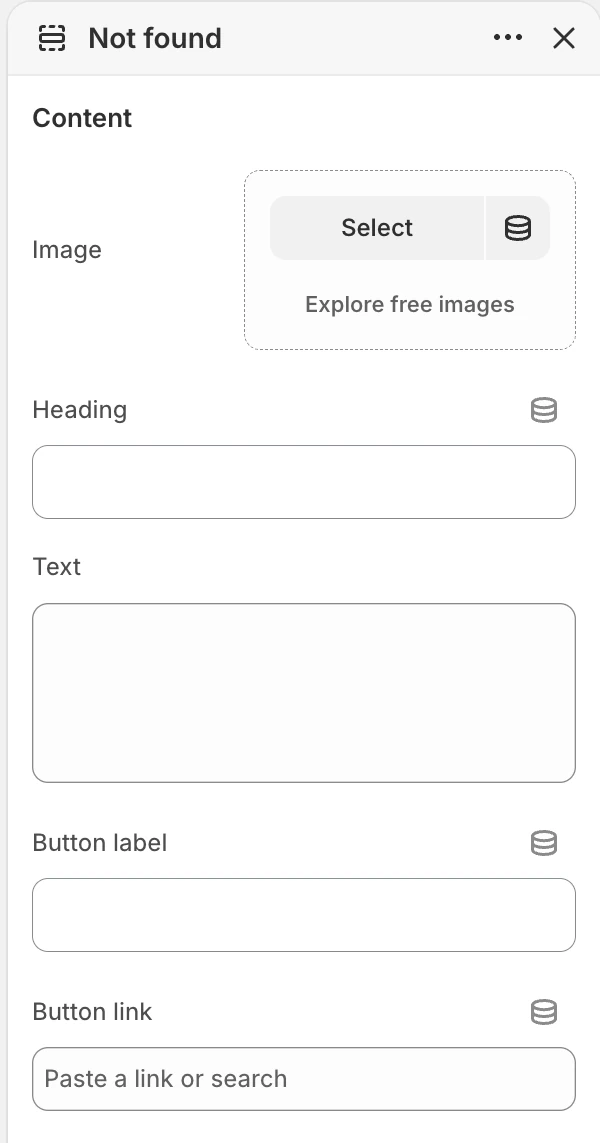
The Content group in the Theme Editor. The values shown are examples, not defaults.
Image
- Controls: Optional image shown above the recovery message.
- Use it when: Use a simple, relevant image that supports the recovery action without implying a specific missing product.
Heading
- Controls: Main not-found heading.
- Use it when: Keep it concise and explain that the requested page is unavailable.
- Fallback: When blank, the section uses the theme's translated not-found message.
Text
- Controls: Supporting not-found explanation.
- Fallback: When blank, the section uses the theme's translated description.
Button label
- Controls: Text for the recovery action.
- Fallback: When blank, the section uses the theme's translated back-to-shopping label.
Button link
- Controls: Destination of the recovery action.
- Fallback: When blank, the section links to the store's all-products collection route.
Layout
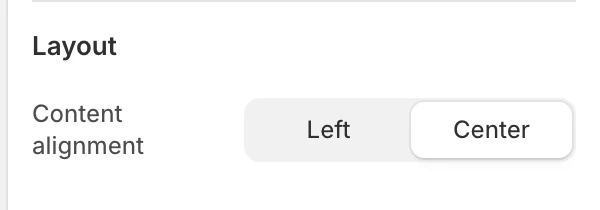
The Layout group in the Theme Editor.
Content alignment
- Controls: Aligns the 404 content.
- Options:
LeftorCenter. The default isCenter.
Spacing
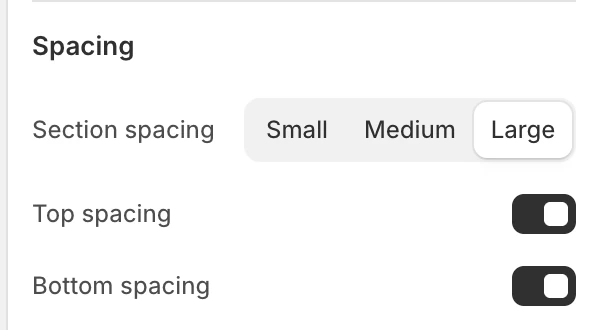
The Spacing group in the Theme Editor.
Section spacing
- Controls: Sets the 404 section spacing to
Small,Medium, orLarge. The default isLarge.
Top spacing
- Controls: Adds or removes top spacing. The default is on.
Bottom spacing
- Controls: Adds or removes bottom spacing. The default is on.
Desktop and mobile behavior
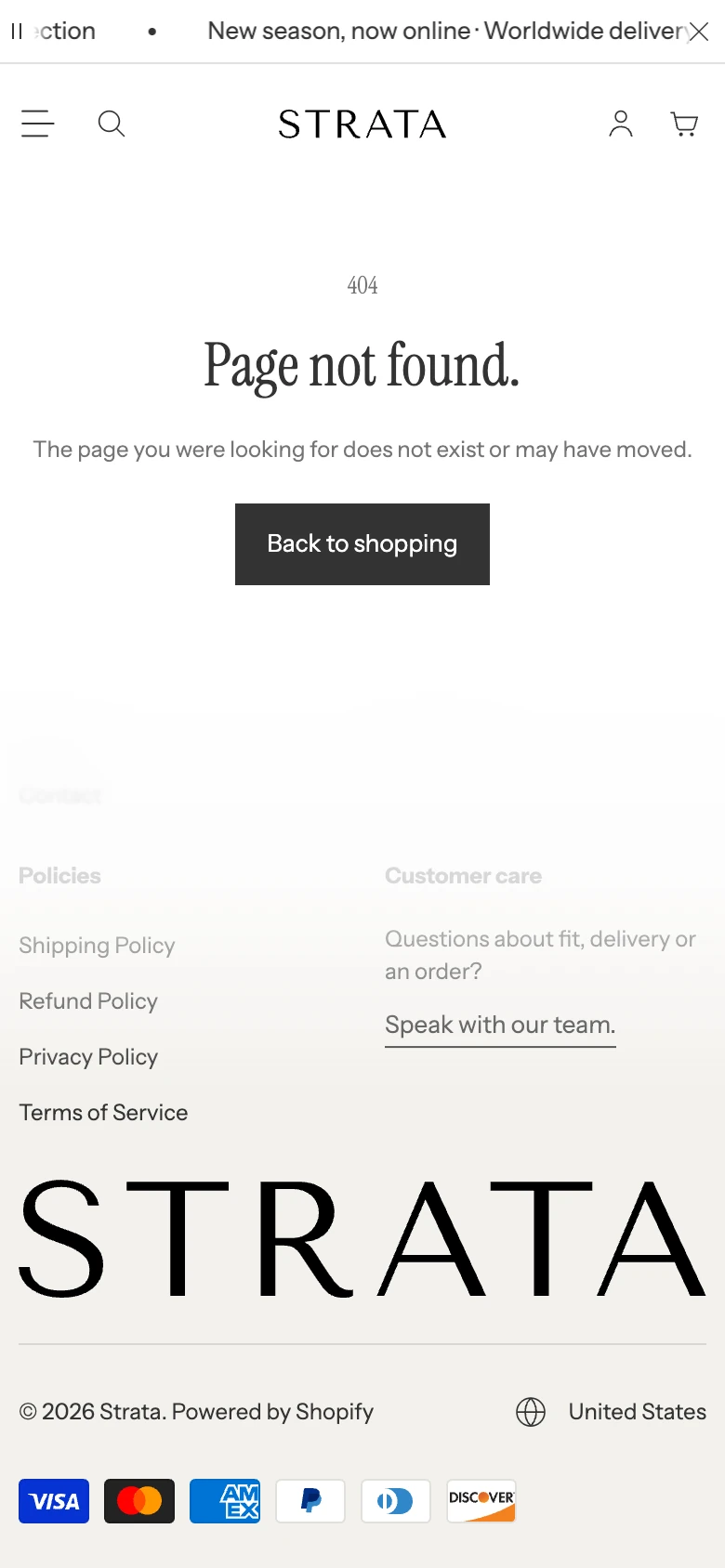
The 404 template on mobile.
Compare the image and no-image states at desktop and mobile sizes, including long translated text and the recovery button.
Media recommendations
Use an image with a clear focal point and no real customer, order, or account information.
Accessibility and motion
Use alternative text that explains the purpose of the image. Keep the recovery heading and button understandable without the image, and verify keyboard focus and reduced-motion behavior for image reveal.
Common checks
- If the return action goes to the wrong place, review Button link; a blank value intentionally uses the all-products collection route.
- If the custom message is absent, check whether the corresponding text field is blank and the translated fallback is being used.