
Use Logo and favicon to supply the brand marks used across the storefront and set the browser tab icon. Header logo sizes are configured in the Header section.
Open Logo and favicon
- From Shopify admin, go to Online Store > Themes.
- Find Strata and select Edit theme.
- Select Theme settings in the left toolbar.
- Open Logo and favicon.
Logo files
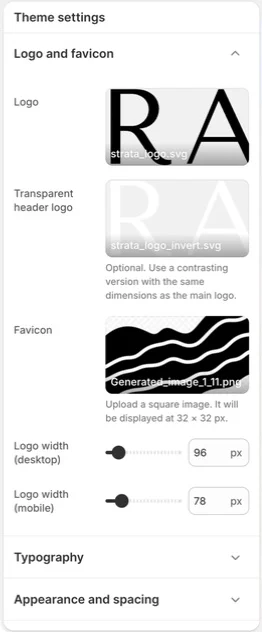
Logo and favicon in Theme settings. Values shown are from the demo store, not defaults.
Dark logo
Upload the logo intended for light or solid surfaces. In the Header or Footer section, choose Dark when that surface should use this asset. Use a source with enough contrast against the backgrounds where it will appear.
Light logo
Upload the alternate logo intended for transparent or dark surfaces. In the Header or Footer section, choose Light when that surface should use this asset. Keep the dark and light files aligned to the same canvas and proportions so the header does not jump when its state changes.
If the selected logo is empty, Strata first uses the other uploaded global logo. If no usable logo is available, the Header and Footer show the store name as text. A fallback asset may not have the intended contrast, so review the normal Header, transparent Header, and Footer before publishing.
Favicon
Upload the small icon shown in browser tabs and other browser UI. Use a square image; Shopify displays the favicon at 32 × 32 px. A simple mark with clear negative space is easier to recognise at this size than a full wordmark.
Logo animation and motion
There is no separate logo-animation setting. Logo motion is part of the Header and page-motion behavior:
- Reveal sections on scroll does not animate the Header logo. The Footer uses its own Standard or Reveal behavior instead of the section-reveal setting.
- Reduce animation and the visitor’s
prefers-reduced-motionpreference reduce or remove motion across the theme, including intro and transition behavior. - Header-specific menu motion is controlled by the separate Reduce header menu animation setting in Animation.
Review both ordinary and transparent Header states when logo transitions are important to the brand.
Review before publishing
- Check the dark logo on every light header background.
- Check the light logo over each transparent or image-backed header.
- Open the Header section and verify its desktop and mobile logo widths with navigation and utility controls visible.
- Open a real browser tab to review the favicon rather than judging only the source file.
- Check both normal and reduced-motion experiences when header motion is important to the brand.
Do not upload a private or customer-specific image as a logo or favicon. Shopify-hosted theme media is public storefront content.
Related guides
- Typography for the type system used beside the logo.
- Appearance and spacing for shared width, padding, blur, and rounding.
- Animation for reduced motion and header-menu behavior.
- Header for header-specific controls and layout.