
Cart settings control how shoppers enter the cart experience and the shared cart options used by the Header, Cart drawer, and Cart page.
Open Cart
Open Theme settings > Cart in the Shopify Theme Editor.
Cart navigation
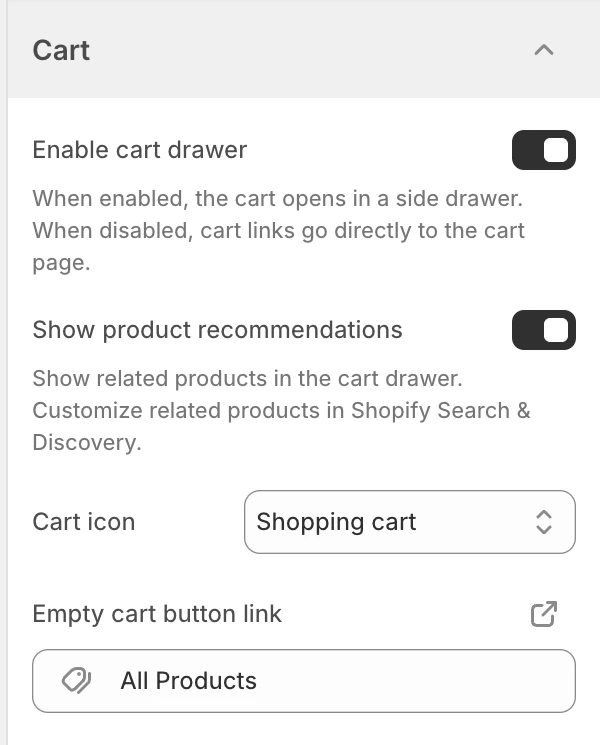
The settings at the top of Cart. Values shown are from the demo store, not defaults.
Enable cart drawer
The default is On.
| State | Effect |
|---|---|
| On | On screens 750 px and wider, the header cart action opens the side cart drawer when the shopper is not already on the cart page. Phones always go to the cart page. |
| Off | The header cart action goes directly to the cart page. |
The drawer still depends on the cart and overlay surfaces being available in the current template. Test add, update, remove, and checkout paths rather than checking only that the panel opens.
Show product recommendations
The default is On. Shows the Complete with recommendations inside the Cart drawer when eligible products are available. Turn it off to hide this row.
To choose the products, open Apps > Search & Discovery > Product recommendations, select the first product in the cart, and edit its Related products. The drawer shows up to four recommendations. This switch does not control the separate Product recommendations section on the Cart page.
Cart icon
Choose the icon label used by the cart action:
- Shopping basket
- Tote bag
- Shopping cart
The default is Shopping cart. Choose the shape that best matches the store’s product category, then confirm that the icon still reads correctly with its accessible label and cart count.
Empty cart button link
Sets the destination of the call to action shown when the cart has no items. The default is All Products (/collections/all). This one setting is shared by the empty Cart drawer and Cart page, and you can change it to a primary collection or another useful shopping destination. If the field is blank, Strata still sends shoppers to All Products.
Free shipping bar
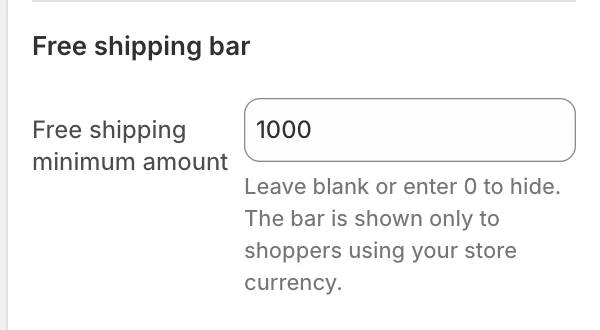
The Free shipping bar group in the Theme Editor.
Free shipping minimum amount
Sets the amount used by the free-shipping progress bar. Leave it blank or set it to 0 to hide the bar. The amount is interpreted in the store currency; this setting does not convert a target between currencies.
The bar appears only when all of these conditions are true:
- the configured threshold is greater than zero;
- the cart contains at least one item;
- the cart currency matches the shop currency.
If the bar is missing, check each condition before changing the theme setting. A market or currency mismatch can be the intended reason for hiding it.
Drawer and responsive behavior
The cart drawer is a shared overlay surface. Its motion can be reduced with Reduce drawer animation in Animation, and its translucent treatment can be affected by Enable global blur effects in Appearance and spacing.
On phones (screens narrower than 750 px) the cart drawer is not used, whatever this setting says: Add to cart updates the Header cart count, and the cart icon opens the full Cart page. If a drawer is open when the window is narrowed to phone width, it closes. Review the drawer on desktop and the Cart page on a phone.
Review before publishing
- Test the header cart action with the drawer on and off.
- Test empty, one-item, multi-item, unavailable, and updated-quantity states.
- Check cart count, icon label, focus return, close controls, and keyboard navigation.
- Test the free-shipping bar just below, at, and above the threshold, including a non-shop currency if the store uses markets.
- Review the drawer and cart page at desktop and mobile widths.
The free-shipping amount is a display threshold, not a shipping-rate configuration. Configure the actual shipping rules in Shopify and keep the bar’s message consistent with those rules.
Related guides
- Animation for drawer motion.
- Appearance and spacing for blur and shared overlay styling.
- Currency format for optional currency-code display.
- Cart page for page-specific cart content.