Strata

Search

Configure the search page, filters, sorting, excerpts, and result grid.

The Search template gives shoppers one place to search products, blog posts, and pages. Use it when the store needs a dedicated result page that remains useful for both broad and specific queries.

Open the Search template

  1. From Shopify admin, go to Online Store > Themes > Customize.
  2. Use the page selector to open Search.
  3. Select the Search section.
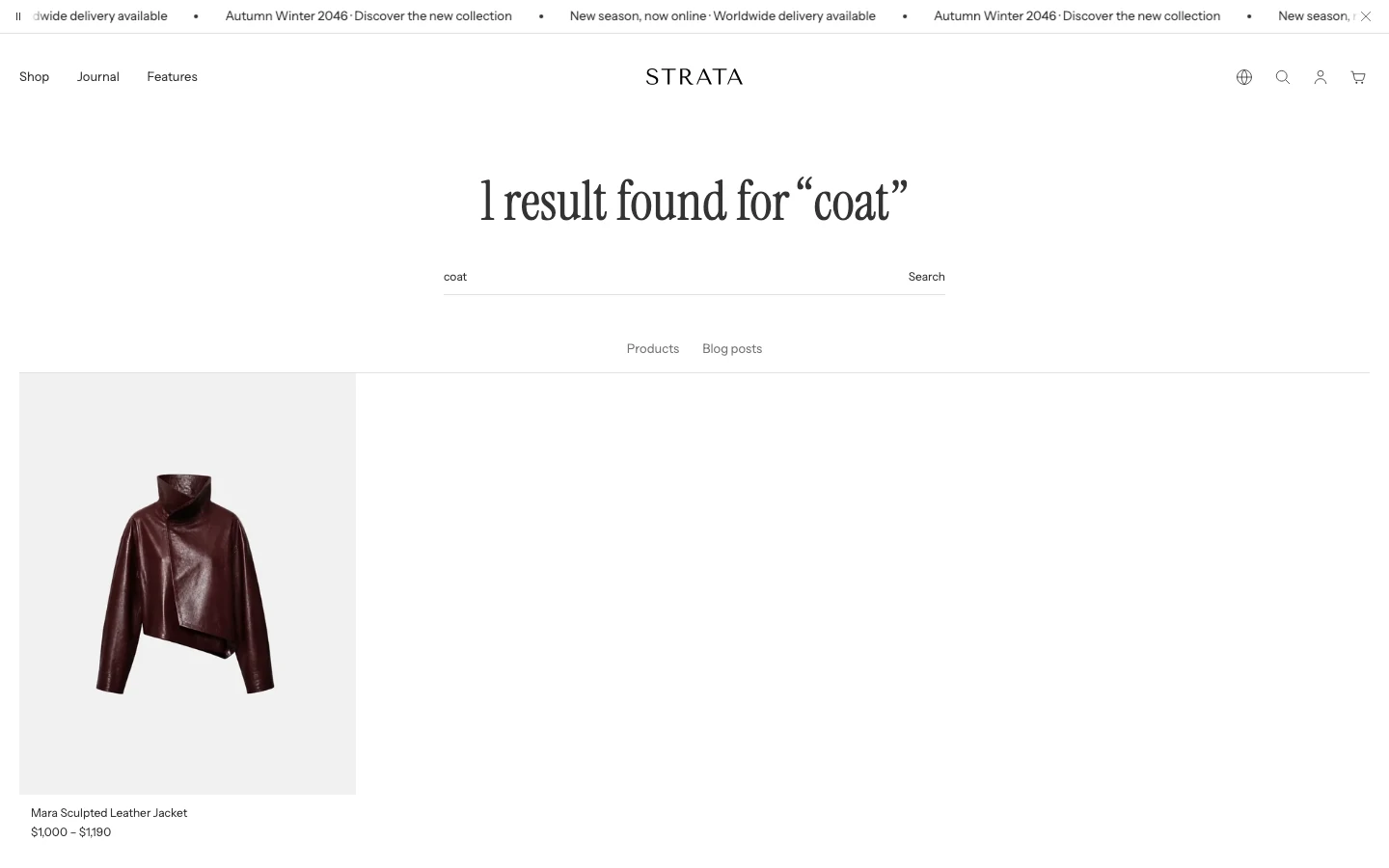
  4. Preview a query with product results, a query that returns pages or articles, and a query with no results.

Template order

The current saved Search template contains one section:

  1. Search

The section always provides the search form. Filters, sorting, results, and pagination depend on the query and the enabled settings.

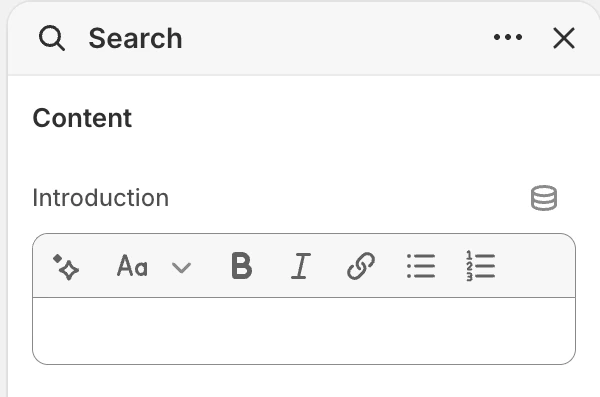
Content

Introduction

  • Controls: Rich text shown below the search heading and above the search form.
  • Use it when: Explain what shoppers can search or provide a short prompt for the result page.

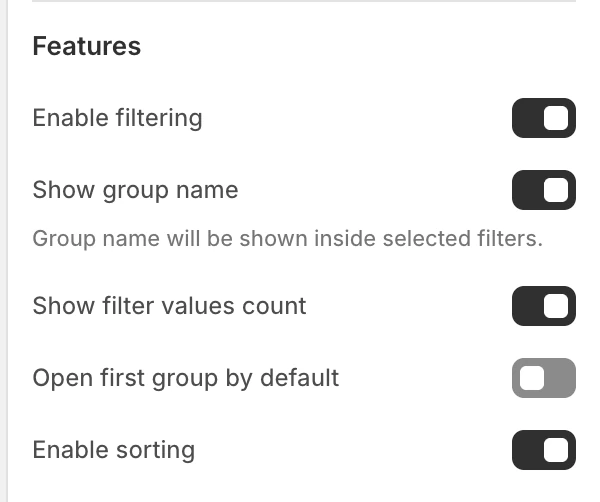
Features

Enable filtering

  • Controls: Enables filters for a performed search that has results. The current default is on.
  • Use it when: Enable it when the store's search results have useful Shopify filter definitions.
  • Dependency: The filter-group controls below are available only when filtering is enabled.

Show group name

  • Controls: Shows the filter group name inside selected filters. The current default is on.

Show filter values count

  • Controls: Shows counts beside filter values. The current default is on.

Open first filter group by default

  • Controls: Opens the first filter group when the filtering interface is first displayed. The current default is off.

Enable sorting

  • Controls: Enables result sorting. The current default is on.
  • Use it when: Keep it on when shoppers should be able to change result order after searching.

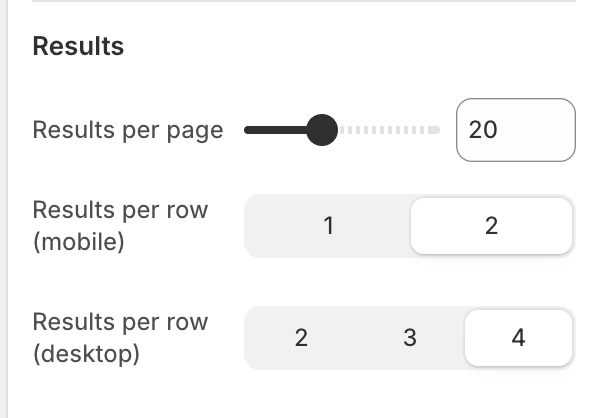
Results

Results per page

  • Controls: Sets how many search results are loaded on each page.
  • Options: 8–40, in steps of 4. The current default is 20.

Results per row (mobile)

  • Controls: Sets the number of result cards per mobile row.
  • Options: 1 or 2. The current default is 1.

Results per row (desktop)

  • Controls: Sets the number of result cards per desktop row.
  • Options: 2, 3, or 4. The current default is 4.

Show page and article excerpts

  • Controls: Shows excerpts for page and article results. The current default is on.
  • Use it when: Keep it on when a short preview helps shoppers distinguish similar content. Product results use the shared Product card presentation instead.

Search results can include products, articles, and pages. Product results use the global Product card settings; non-product results use their title, type label, optional image, and optional excerpt.

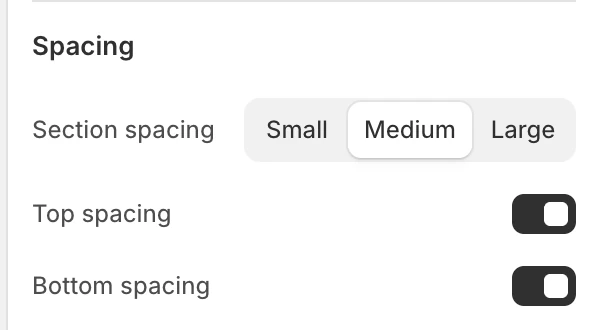
Spacing

Section spacing

  • Controls: Sets Search section spacing to None, Small, Medium, or Large. The current default is Medium.

Top spacing

  • Controls: Adds or removes top spacing. The current default is on.

Bottom spacing

  • Controls: Adds or removes bottom spacing. The current default is on.

Search states

The current section has three important states to review:

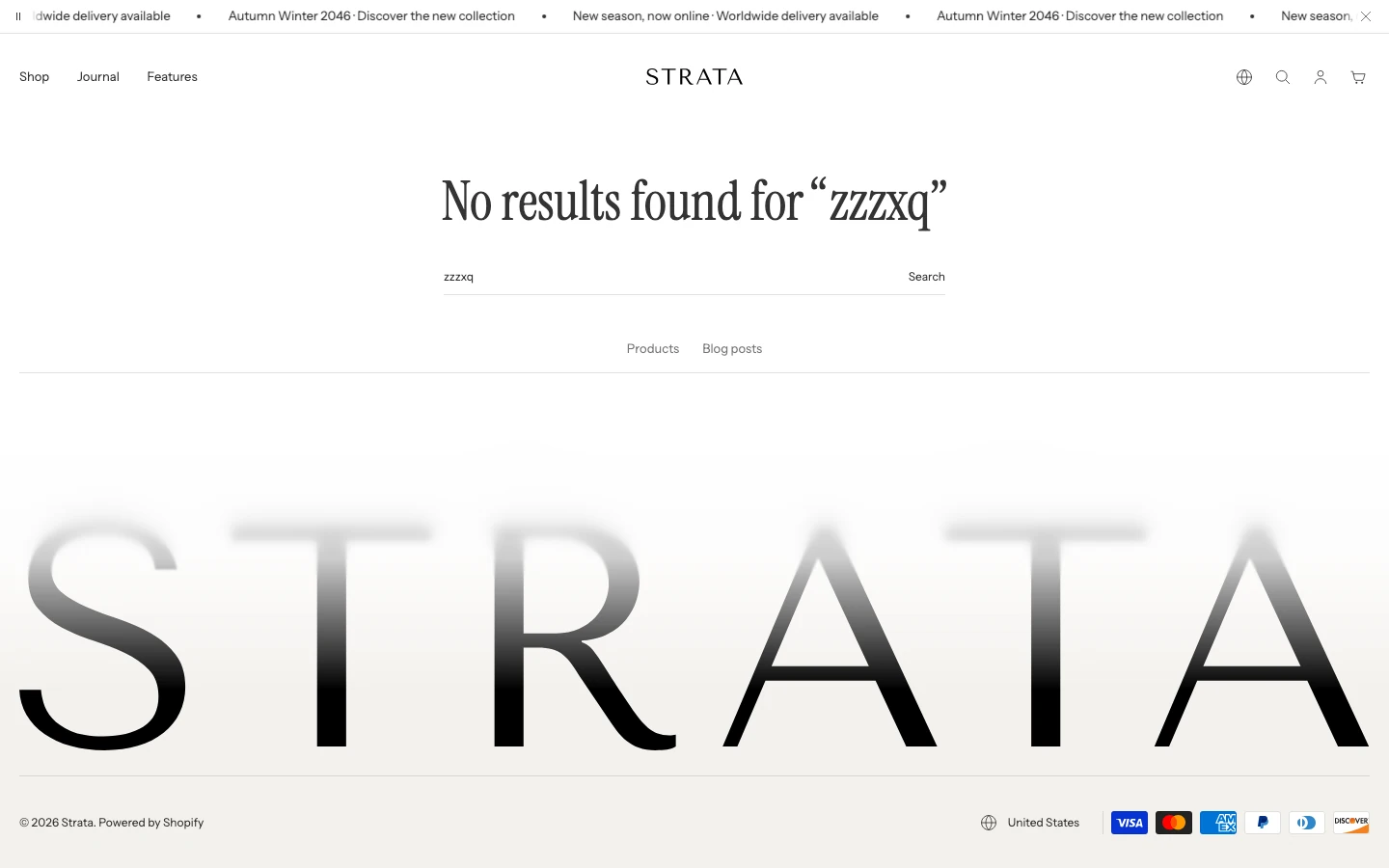
  • Before a search: The page shows the search heading, introduction, and search form.
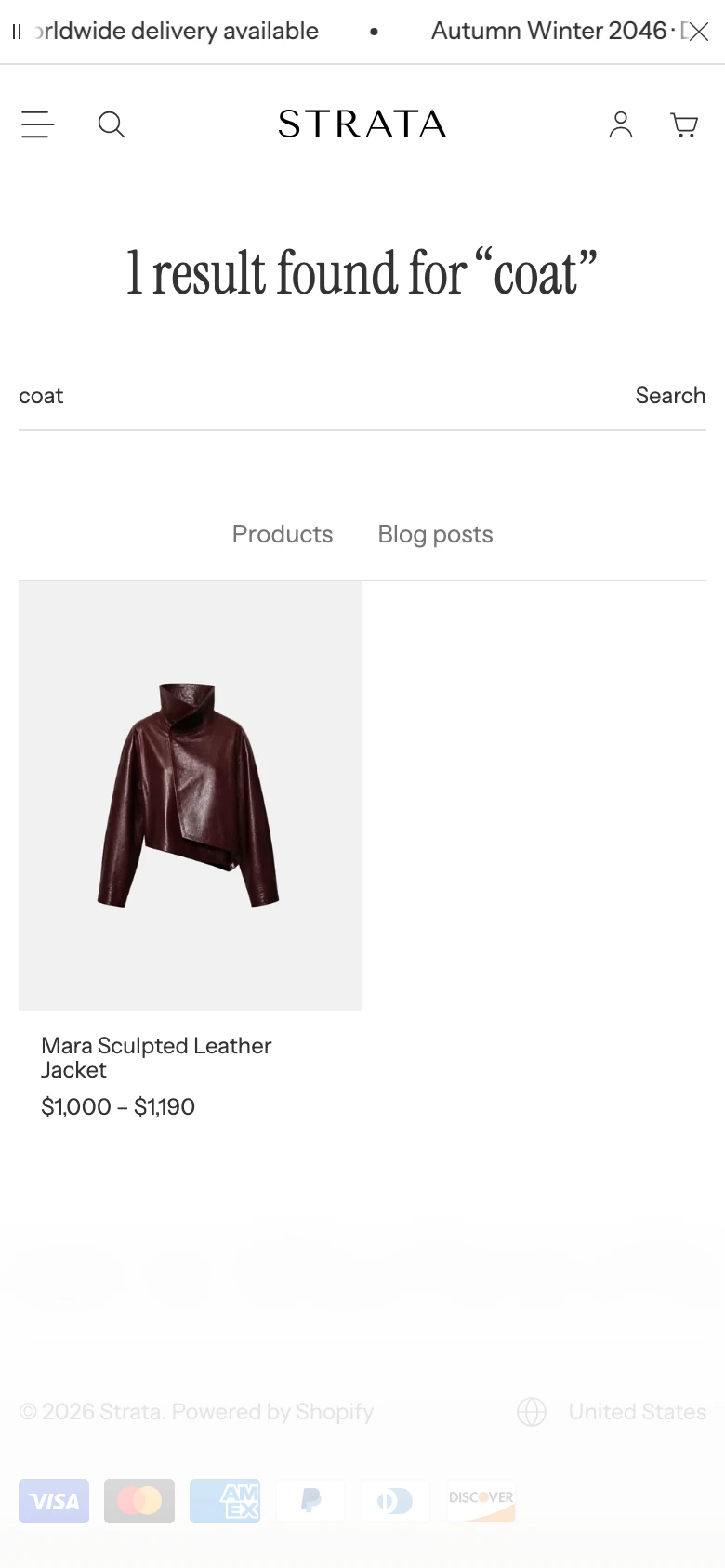
  • Results: The heading reflects the query and result count; filtering and sorting can appear when enabled.
  • No results: The heading reports that no results were found for the query, while the search form remains available for another query.

The exact text is supplied by the current English locale and may be translated by the store. Verify the final empty, loading, and error states in the accepted browser fixture.

Desktop and mobile behavior

The template exposes separate result columns for desktop and mobile. A final guide should compare the same queries at both sizes and verify:

  • one-column and two-column mobile result cards;
  • product cards beside page and article result cards;
  • filter and sort controls, including the drawer state where applicable;
  • pagination when the result count exceeds Results per page;
  • long queries, long titles, and missing result images.

Exact breakpoints and unverified filter behavior are intentionally not stated here.

Media recommendations

Search result images are derived from the result records. Maintain useful alternative text on product, article, and page images. Exact crop and dimensions require approved fixture testing.

Accessibility and motion

Keep the search field, submit action, filters, sorting controls, pagination, and result links keyboard reachable with visible focus. Verify focus return when a filter drawer closes and reduced-motion behavior for result loading before publishing an interaction claim.

Common checks

  • If filtering controls are absent, confirm the search has results and Enable filtering is on.
  • If filter-group controls are unavailable, confirm Enable filtering is enabled.
  • If product cards differ from non-product results, review the Product card guide; this is an intentional surface distinction.
  • If excerpts are missing, confirm the result is a page or article and that Show page and article excerpts is on.

[!NOTE] The setting labels, dependencies, ranges, options, defaults, and section order above come from the current Search template and section schema. Search ranking, filter availability, pagination, responsive layout, and browser interaction remain pending accepted verification.

Search documentation

Search across the Strata guide