
Scrolling text
Display one prominent brand or promotional message with automatic or scroll-linked movement.
Scrolling text turns a short message into a high-impact visual section. Use it for a concise campaign line, proposition, or announcement—not for instructions or copy that visitors must stop and study.

Scrolling text on desktop.
Add Scrolling text
In Shopify's theme editor, add Scrolling text to a compatible template or open an existing section. It is not available in header, footer, or overlay groups.
Content
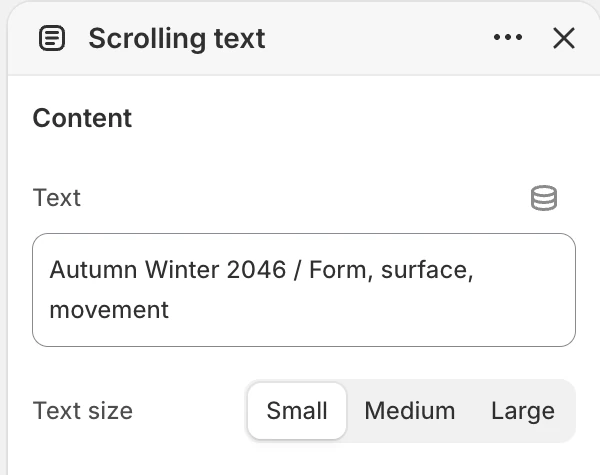
The Content group in the Theme Editor. The values shown are examples, not defaults.
| Setting | What it controls | Options or default |
|---|---|---|
| Text | The message repeated or moved through the section. | Default: Share an announcement, promotion, or brand message. |
| Text size | The visual scale of the message. | Small, Medium, or Large. Default: Large. |
Keep the message short enough to understand without waiting for another cycle. If Text is blank, the section does not render a message.
Layout
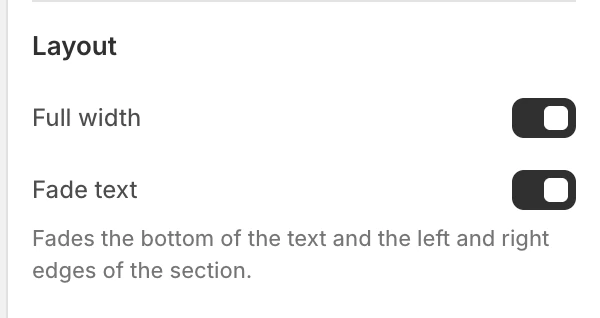
The Layout group in the Theme Editor.
| Setting | What it controls | Options or default |
|---|---|---|
| Full width | Lets the section use the full-width treatment instead of the page-width container. | Enabled by default. |
| Fade text | Fades the bottom of the text and the left and right edges of the section. | Enabled by default. |
The fade is a visual treatment, not a replacement for readable copy. Check the full message in preview before publishing.
Motion and controls
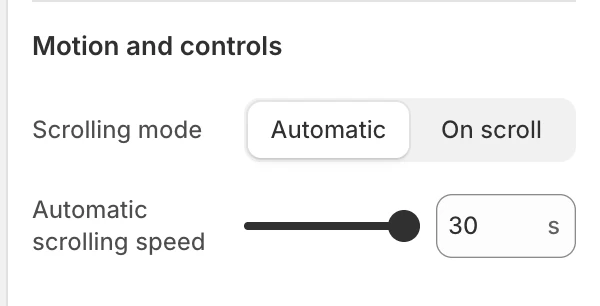
The Motion and controls group in the Theme Editor.
| Setting | What it controls | Options or default |
|---|---|---|
| Scrolling mode | Chooses whether the message runs automatically or responds to page scrolling. | Automatic or On scroll. New sections default to Automatic. |
| Automatic scrolling speed | Sets the automatic mode duration. | 2–30 seconds, step 1 second. New sections default to 20 seconds. Visible only when Scrolling mode is Automatic. |
In Automatic mode, the message moves while the section is in view and pauses on pointer hover. Shoppers can also use a pause/play button, and a manual pause remains in effect until they select Play again. In On scroll mode, movement follows page scrolling and the automatic playback button is not shown.
Reduced-motion preferences stop the animation, keep the content static, and remove the automatic playback button because there is no automatic motion to control. Do not put essential legal, pricing, or product instructions only in the moving line.
Colors
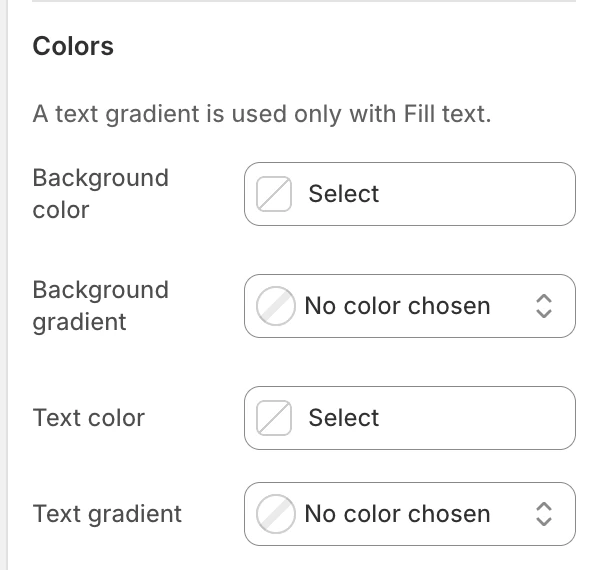
The Colors group in the Theme Editor.
| Setting | What it controls | Default |
|---|---|---|
| Background color | The section background color. | Leave blank to inherit Theme settings > Colors > General; selecting a color in this section overrides the inherited value. |
| Background gradient | Optional background gradient. | No default. |
| Text color | The solid text color. | Leave blank to inherit Theme settings > Colors > General; selecting a color in this section overrides the inherited value. |
| Text gradient | Optional gradient applied to the fill text treatment. | No default. |
When Text gradient is set, it fills the letters of the message and replaces Text color. Clear it to return to the solid color.
Writing and accessibility
- Use one short message and avoid all-caps copy that is difficult to read while moving.
- Check text/background contrast across the entire gradient, not only at its start.
- Confirm the static message is complete and understandable with reduced motion enabled.
- Confirm the pause/play button has a clear accessible label and that manual pause remains active until Play is selected.
- Test keyboard focus around nearby links and controls; the scrolling line must not obscure them.
- Avoid using motion to convey the only copy of a promotion, deadline, or legal notice.
Common issues
| Symptom | Safe check |
|---|---|
| Speed control is missing | Choose Automatic under Scrolling mode; the speed control is conditional. |
| The line is static | Check for reduced-motion preferences, then confirm the section is in view and the selected mode is intentional. |
| The pause/play button is missing | It is available for Automatic movement. On scroll and reduced-motion states intentionally keep the content static or scroll-linked without that automatic playback control. |
| Gradient is not visible | Confirm a gradient is selected in Text gradient and that its colors contrast with the background. |
| The message is clipped or unclear | Shorten Text, disable Fade text, or review contrast before changing layout. |
| The section is not visible | Check that Text is not blank and that the section is enabled in the template. |