
The Search drawer opens from the desktop Header and combines predictive search with useful links and optional trending products before a query is entered. On screens narrower than 990 px, where Strata uses the mobile Header (phones and most tablets held upright), the search icon opens the full Search page instead.
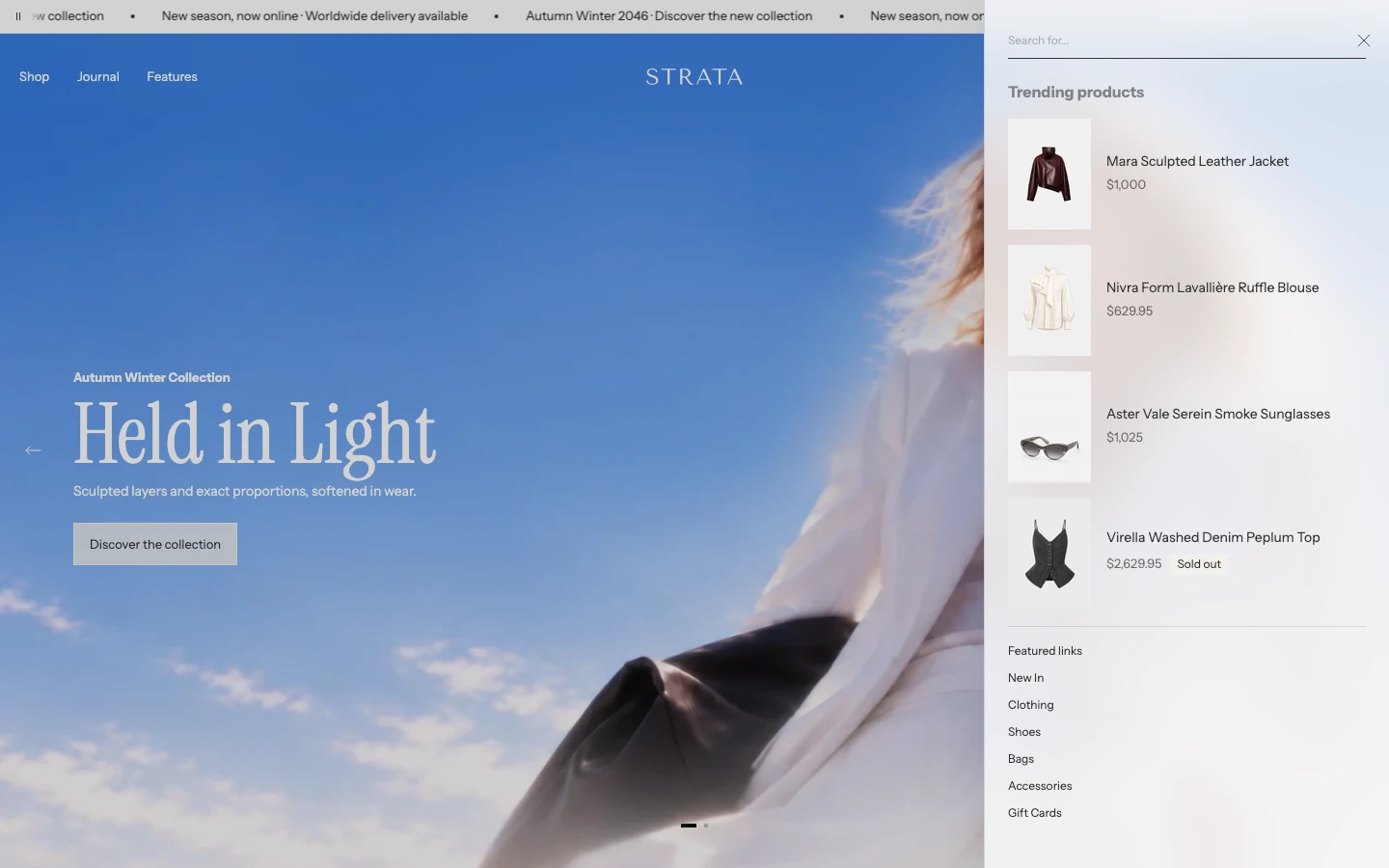
Search drawer on desktop before the shopper types.
Add or open this feature
In Shopify, open Online Store > Themes > Edit theme, select the Overlay group, and open Search drawer. Strata allows one Search drawer in the overlay group.
The desktop Header search action opens this drawer; the mobile Header search action opens the full Search page.
Featured links
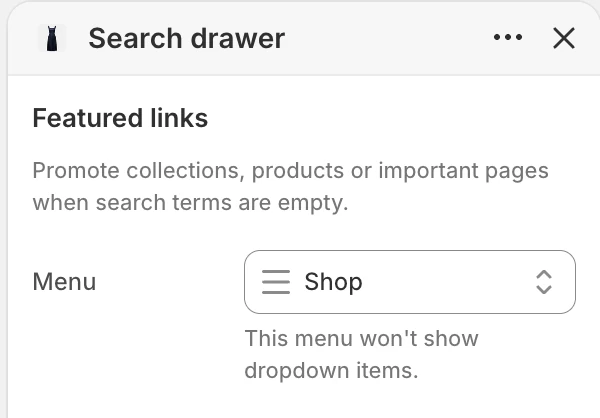
The Featured links group in the Theme Editor. The values shown are examples, not defaults.
Menu
Select the menu used for featured links when the search field is empty. Dropdown items in this menu are not shown; use direct links at the level you want visitors to see. Choose collections, products, or important pages that deserve a quick path before a search begins.
Trending products
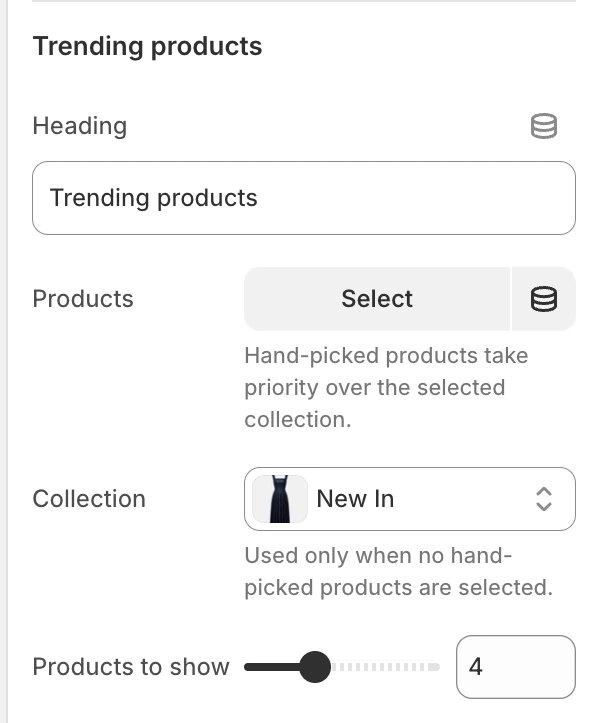
The Trending products group in the Theme Editor.
Heading
Sets the heading above the trending product list. Keep it short enough to sit on one line in the drawer.
Products
Select hand-picked products to show when search terms are empty. You can select up to 8 products. Hand-picked products take priority over the selected collection.
Collection
Select a fallback collection for the trending list. It is used only when no hand-picked products are selected.
Products to show
Sets how many trending items are displayed, from 2–8 products in 1-product steps. The chosen count is applied to the hand-picked list or fallback collection after the priority rule above.
Empty-query and search states
When the field is empty, the drawer can show the selected trending products and featured links. Predictive search starts after the shopper enters at least 2 characters. Suggestions, products, and articles then replace the empty-query content. Use the empty state to answer “where should I start?” and the query state to help a shopper narrow the result.
Predictive result order
- Up to 3 suggested searches are shown first when Shopify returns them.
- Products and articles follow, with up to 5 results requested for each resource type.
- Select a product or blog-post suggestion to open it directly, or use View all results to open the full Search page for the selected type. The link shows the full matching count when available, which can exceed the number of suggestions displayed.
When both products and blog posts are available, Strata shows accessible Products and Blog posts tabs and selects Products first. When only one resource type is available, its label is presented without an unnecessary tab control. The selected tab is retained while the result list refreshes when possible.
Content priority matrix
| Configuration | Empty-query result |
|---|---|
| Hand-picked Products selected | The hand-picked products are used. |
| No hand-picked products, Collection selected | Products are taken from the selected collection. |
| Neither selected | No trending product list is available. |
| Menu selected | Featured links are shown without dropdown children. |
| Shopper enters fewer than 2 characters | The configured empty-query content remains visible. |
| Shopify returns suggestions | Up to 3 suggested searches appear before resource results. |
| Products and blog posts are both available | Products and Blog posts appear as tabs; Products is selected first. |
| Only products or only blog posts are available | That resource appears directly without a tab switcher. |
| No predictive result is available | The drawer shows the no-results message for the query. |
Desktop and mobile behavior
The predictive drawer belongs to the desktop Header, used on screens 990 px and wider. Below 990 px, search opens the full Search page, and an open drawer closes if the window is narrowed past that width. It supports products and matching blog posts; filtering and sorting apply to products only. Test both the desktop drawer and the full-page entry point.
Accessibility and motion
Give the Heading enough context when the drawer has a list of products, and keep menu labels descriptive. Verify that opening, closing, typing, clearing, selecting a predictive result, and switching Products / Blog posts tabs remain keyboard accessible. The global Reduce drawer animation and Enable global blur effects settings also apply to shared drawer surfaces.
Common issues
- The selected collection does not appear: hand-picked Products take priority; clear that list if the collection should be used.
- Too many products show: reduce Products to show; the field accepts 2–8.
- Dropdown children are missing from featured links: this is expected; the selected Menu shows only its direct links in the drawer.
- The drawer has no starting content: select a featured menu, hand-picked products, or a fallback collection.
- Predictive results do not start immediately: enter at least 2 characters; shorter input deliberately keeps the starting content visible.
- The Products or Blog posts tab is missing: tabs appear only when both resource types have results. A single result type is shown directly.
- Mobile opens a page instead of the drawer: mobile search uses the full Search page.