
Animation settings control how Strata introduces pages, reveals sections and media, and moves drawers, menus, and imagery. The theme also respects a visitor’s prefers-reduced-motion preference.
Open Animation
Open Theme settings > Animation in the Shopify Theme Editor. Settings are grouped as General and reduced motion, Product motion, and Parallax.
General and reduced motion
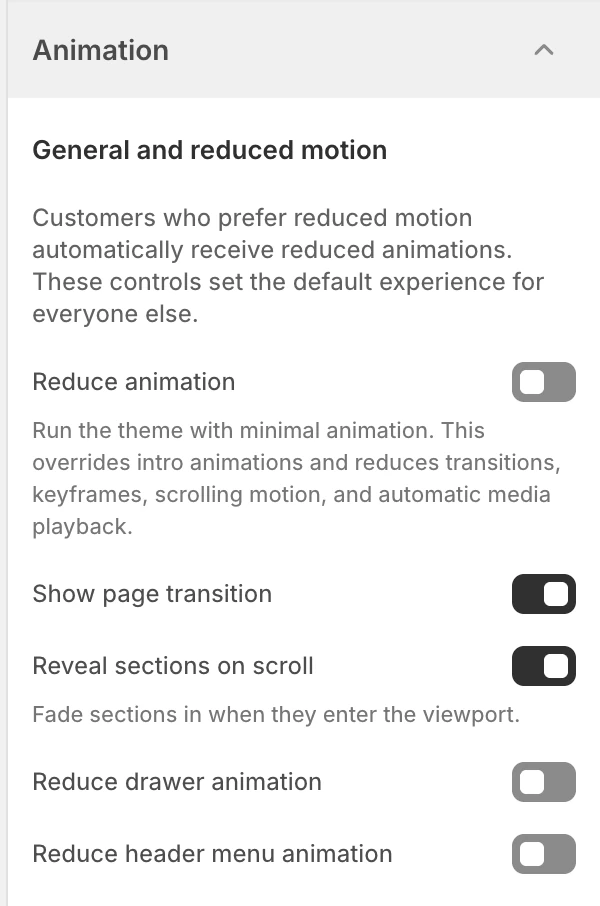
The General and reduced motion group in the Theme Editor. Values shown are from the demo store, not defaults.
The editor explains that visitors who prefer reduced motion automatically receive reduced animations. These controls set the default experience for everyone else.
Reduce animation
The default is Off.
| State | Effect |
|---|---|
| Off | The other animation settings can run for visitors without a reduced-motion preference. |
| On | Runs the theme with minimal animation. It overrides intro animations and reduces transitions, keyframes, scrolling motion, and automatic media playback. |
This is the broad switch for stores that want a quiet default. A visitor’s system-level reduced-motion preference has the same practical priority even when this setting is off.
Show page transition
The default is On. When enabled, supported page navigation can use the theme’s page transition. Reduce animation or a reduced-motion preference suppresses that motion.
Reveal sections on scroll
The default is On. Supported template sections fade in as they enter the viewport. Template pages such as Collection, Search, Blog, Article, Cart, and Contact also bring their first-screen content in as a short sequence. The Footer follows its own Standard or Reveal behavior. Turn this off when the page should present all content immediately or when staged entry makes a dense page distracting.
Reduce drawer animation
The default is Off. When on, the shared Cart, Search, and other overlay drawers use reduced movement. The drawer still opens and closes; this setting changes how it reaches its open or closed state.
Reduce header menu animation
The default is Off. When on, header menu and submenu transitions use reduced movement. Use it when a menu needs to feel immediate or when the brand prefers a low-motion navigation experience.
Product motion
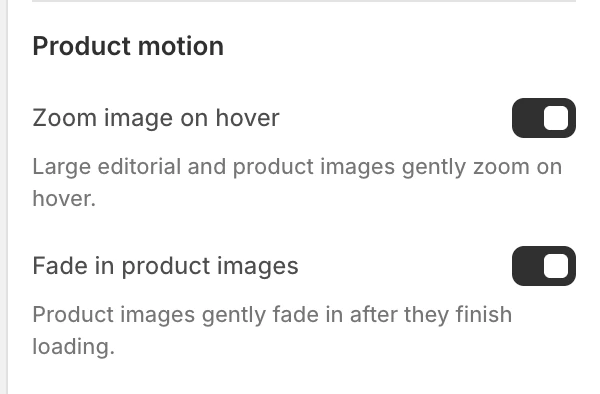
The Product motion group in the Theme Editor.
Zoom image on hover
The default is On. Supported editorial and product images can gently zoom on pointer hover. Product cards can also show the effect through keyboard focus. Touch screens do not have persistent hover, and visitors who prefer reduced motion receive a reduced or static presentation, so review both experiences before publishing.
Fade in product images
The default is On. Product images can gently fade into view after loading. Reduced motion and the theme’s reduced-animation path suppress this effect. This setting does not change whether Shopify delivers an image or its loading priority.
Parallax
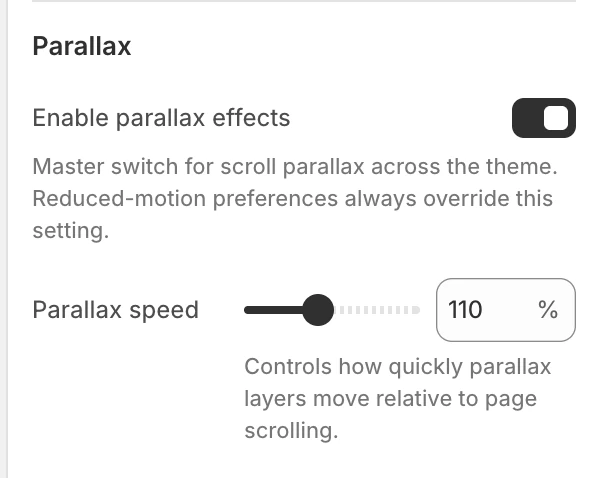
The Parallax group in the Theme Editor.
Enable parallax effects
The default is On. This is the master switch for supported section parallax effects. It does not add parallax to every section; only sections designed to expose the effect can respond.
| State | Effect |
|---|---|
| On | Supported media and editorial sections can use the configured parallax speed. |
| Off | Parallax is disabled and supported sections remain in normal document flow. |
Reduced motion always overrides parallax, regardless of this setting.
Parallax speed
Visible when Enable parallax effects is on. Sets relative movement from 50–200%, in 10% steps. The default is 100%. Lower values are more restrained; higher values create a stronger difference between the media and the page scroll. Review text legibility and focal points before using a strong value.
Open a supported section, such as Parallax waterfall or Collection banner, and enable its local parallax control. Preview the result with the selected media and layout.
Choosing states
| Goal | Suggested starting point |
|---|---|
| Quiet, accessible default | Reduce animation: On; leave page and media motion to the reduced path. |
| Editorial entrance with restrained controls | Reduce animation: Off, Reveal sections on scroll: On, Zoom image on hover: On. |
| Fast navigation | Show page transition: Off, Reduce drawer animation: On, and Reduce header menu animation: On. |
| No depth movement | Enable parallax effects: Off. |
These are starting points, not a substitute for checking the store’s actual content and browser support.
Accessibility and review
- Test keyboard navigation and focus visibility while drawers and menus animate.
- Test a browser or operating system with reduced motion enabled.
- Check touch and mouse/trackpad experiences separately; hover motion is not a mobile interaction.
- Confirm that automatic media playback and reveal effects do not delay access to product, cart, or form content.
Related guides
- Appearance and spacing for blur and shared surfaces.
- Product card for product image and quick-buy presentation.
- Cart for the cart drawer setting.