
The Cart template gives shoppers a full-page review of their items before checkout. Use it when customers need to review quantities, shipping estimates, order notes, discounts, and payment methods in one place.
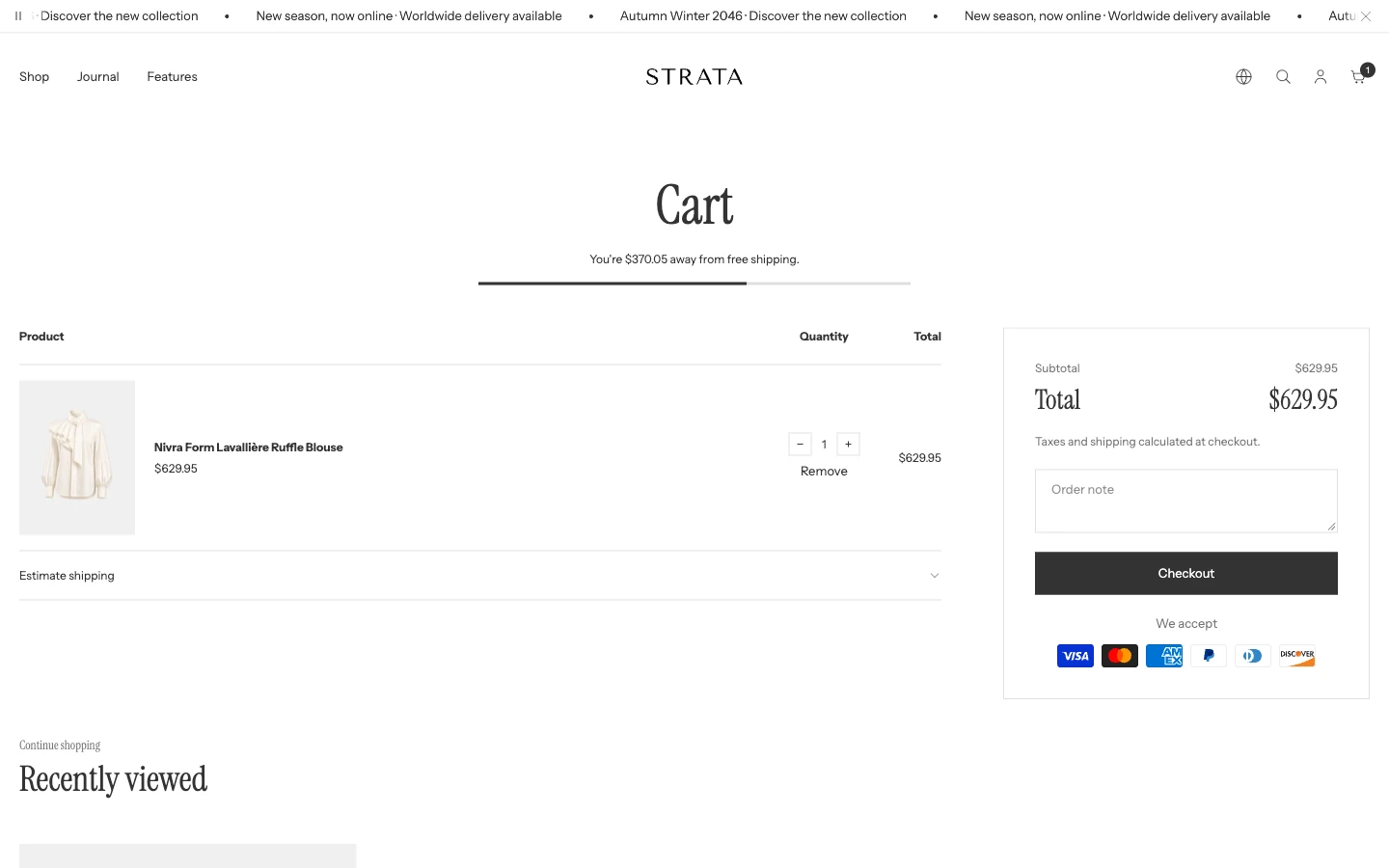
The Cart template with one item.
Open the Cart template
- From Shopify admin, go to Online Store > Themes > Edit theme.
- Use the page selector to open Cart.
- Select the Cart section.
- Preview both an empty cart and a cart containing multiple items, a discount, and a quantity rule before saving.
The Cart page can show Product recommendations for related items and Recently viewed products for items visitors have already explored.
Features
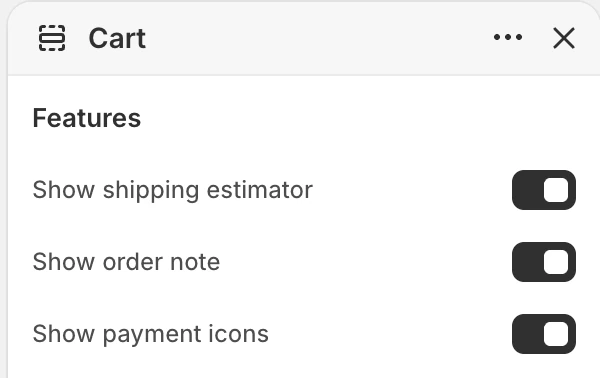
The Features group in the Theme Editor. The values shown are examples, not defaults.
Show shipping estimator
- Controls: Shows the shipping-estimate disclosure on the cart page. The default is on.
- Use it when: Enable it when customers should be able to enter a destination before checkout.
- Check before publishing: Test country or region, province or state, postal code, loading, no-rate, and error states.
Show order note
- Controls: Shows the order-note field. The default is on.
- Use it when: Enable it when customers need to add delivery or order instructions that the store can act on.
Show payment icons
- Controls: Shows the payment methods enabled for the store. The default is on.
- Use it when: Keep it on when payment-method recognition helps customers complete checkout.
- Dependency: Icons are shown only when the store has enabled payment types to display.
Cart states
Empty cart
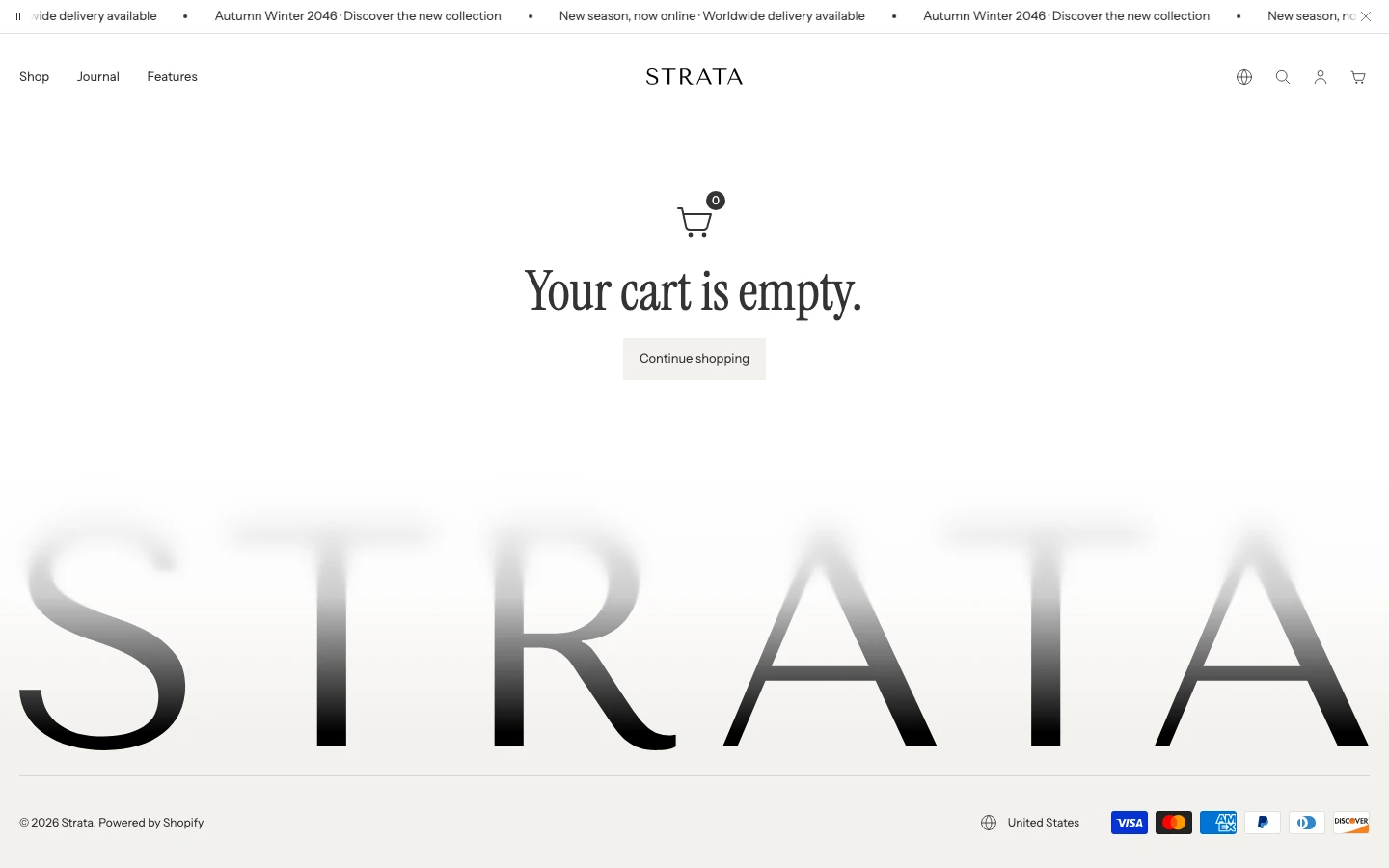
The empty cart state.
An empty cart shows the cart empty message and a continue-shopping link. Its destination comes from Theme settings > Cart > Empty cart button link, which is shared with the Cart drawer. The default and blank-field fallback are All Products (/collections/all).
Cart with items
The full cart shows product media, product title, variant details, unit price, quantity controls, line totals, discounts when present, subtotal, total, checkout, and optional payment icons. Review quantity and remove actions with a non-sensitive test cart.
Initial prices and totals, plus values recalculated after a quantity or remove action, use the cart's current currency. Theme settings > Currency format > Show currency codes changes whether supported cart amounts use a currency code or the narrower symbol treatment; it does not change the shopper's currency or exchange rate.
Shipping estimator
When enabled, the estimator sends the shopper's destination to Shopify and displays the shipping rates Shopify returns. The theme does not calculate these rates. If no rate is available, first check the store's shipping zones, profiles, products, and destination in Shopify rather than assuming the theme is at fault.
Order note
When enabled, the order note field is shown in the cart summary. Never place customer addresses, phone numbers, or private delivery instructions in screenshots or support requests.
Product recommendations
In the Cart template, open Product recommendations if it is already listed. Otherwise, choose Add section > Product recommendations and place it directly below Cart. Set its heading and choose a carousel or stacked layout. Hide or remove the section to turn it off; the Cart drawer's Show product recommendations switch does not affect it.
Automatic recommendations use Related products for the first product in the cart. Manage that product's related recommendations in Shopify Search & Discovery, or use Manual recommendations to select products directly in this section. Products already in the cart are excluded. The section updates when the cart's products change and stays hidden when the cart is empty or no eligible recommendations remain.
Recently viewed products
Recently viewed products shows eligible products viewed in the same browser. It can remain hidden when no eligible history is available or customer-privacy preferences do not allow it. Choose Layout: Carousel or Stack; heading alignment is Left or Center. See Recently viewed products for all settings, colors, and visibility conditions.
Desktop and mobile behavior
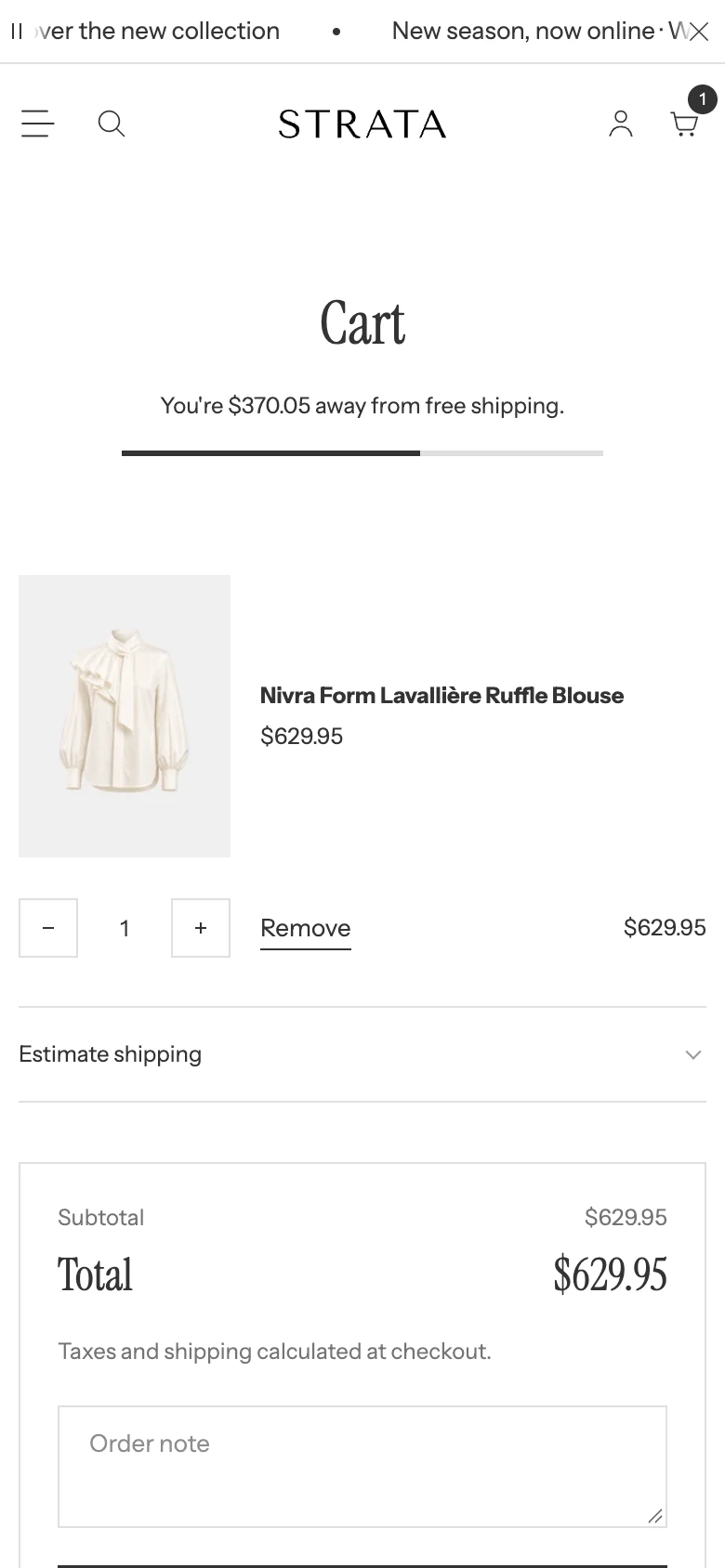
The Cart template on mobile. On phones, the Header cart icon always opens this page.
Before publishing, compare empty and populated carts at desktop and mobile widths:
- line-item media, variant details, quantity controls, and remove actions;
- shipping-estimator fields and result states;
- order-note and payment-icon placement;
- checkout controls and any additional payment actions;
- the Recently viewed section when browsing history is present or absent.
Media recommendations
Use product media with meaningful alternative text. Keep test carts free of real customer or order information.
Accessibility and motion
Verify labels and focus for quantity controls, remove actions, shipping fields, order note, checkout, and payment actions. Confirm that cart updates announce their result and that reduced-motion behavior does not hide an important price or status update.
Common checks
- If the shipping estimator is absent, confirm Show shipping estimator and the Cart template assignment.
- If payment icons are absent, confirm Show payment icons and the store's enabled payment types.
- If the order note field is absent, confirm Show order note.
- If Recently viewed products are empty, browse products in the same browser before treating it as a theme issue.
- If a shopper cannot increase a quantity, the quantity returns to the last amount Shopify accepted, and screen readers announce Shopify's reason, such as the stock that remains. Check the product's inventory and any quantity rules in Shopify admin.