
The Announcement bar keeps shipping messages, launches, and time-sensitive notices visible above the header without taking over the page.

The Announcement bar sits above the Header.

The Announcement bar on mobile.
Add or open this feature
In Shopify, open Online Store > Themes > Edit theme and select the Header group. Open Announcement bar. Strata allows one Announcement bar in the header group.
The Header group order is Announcement bar, then Header. Keep the bar first when you want the message to sit above navigation.
Motion and controls
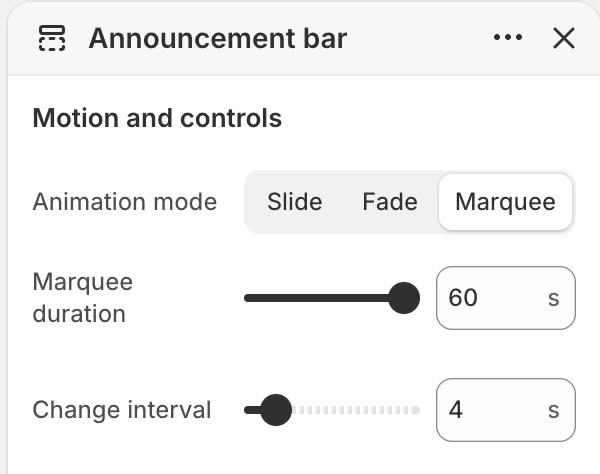
The Motion and controls group in the Theme Editor. The values shown are examples, not defaults.
Animation mode
Choose how multiple announcements are presented:
- Slide moves between messages horizontally.
- Fade changes the active message with a fade.
- Marquee moves the announcement content continuously across the bar.
New installations start with Fade.
With more than one non-empty Announcement block, Slide and Fade rotate between messages and provide previous/next controls. Marquee uses the continuous moving presentation. A visitor can pause an automatically moving bar when the pause control is available, and the bar also pauses while it is hovered or focused.
Marquee duration
Controls the time used by one Marquee cycle. The available range is 30–60 s, in 2 s steps. New installations start at 60 s. Use a longer duration when your message is longer or when visitors need more time to read it.
This control is relevant to Marquee. For a rotating Slide or Fade bar, use Change interval instead.
Change interval
Controls how long a Slide or Fade message remains active before the next message is shown. The available range is 3–12 s, in 1 s steps. New installations start at 4 s.
Use a shorter interval only for very short notices. For shipping or promotion details, give visitors enough time to read the complete message.
Animation mode: Marquee. Messages scroll continuously.
Colors
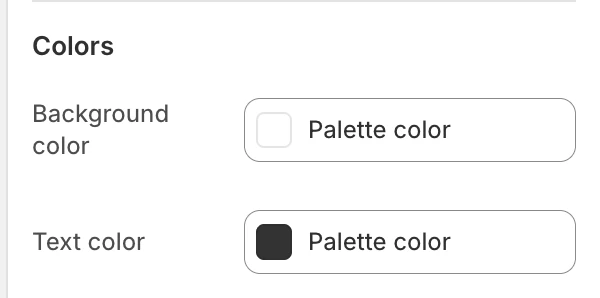
The Colors group in the Theme Editor.
Background color
Sets the surface color of the bar. Choose a color that separates the notice from the header while keeping text readable.
Text color
Sets the color of the announcement text, links, and utility controls. Check the message in both its normal and active states after changing the background.
Blocks
Announcement
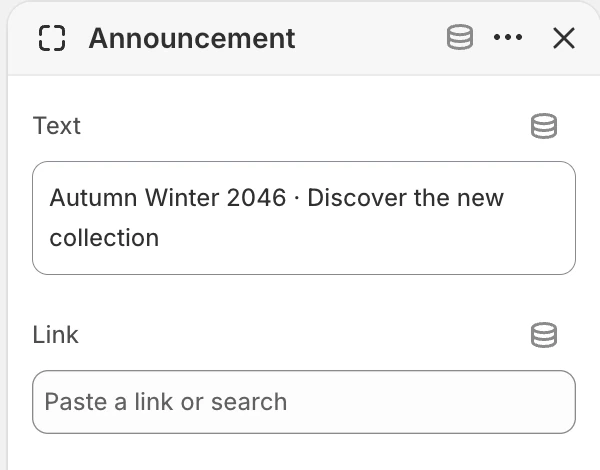
Announcement block settings.
Add one block for each message you want to display. Each block has:
- Text — the short message visitors should read.
- Link — an optional destination for the message.
Reorder blocks to change their presentation order. Empty message blocks do not produce a visible announcement.
Visitor controls and state
Visitors can use the bar's pause control when it is rotating or moving, use previous/next controls for Slide and Fade when several messages are present, or close the bar. Closing the bar is remembered for the current browser session. This is useful for a temporary notice, but it means a visitor who closes the bar may not see later messages during that session.
On narrow screens, long Slide and Fade messages move horizontally only when they overflow the available space. With reduced motion, the message wraps instead of running the overflow animation, so write copy that remains understandable as a static notice.
If your message must remain available after a visitor dismisses it, repeat the information in the page content, header navigation, or footer rather than relying on the Announcement bar alone.
Accessibility and motion
Keep each message short enough to understand without relying on animation. Strata provides a pause action for automatic movement and respects the theme's reduced-motion setting.
Common issues
- Only one message appears: check that the other Announcement blocks contain text and are not empty.
- The bar does not move: check Animation mode, then check whether the visitor has paused or dismissed it.
- A long mobile message wraps instead of moving: this is expected when reduced motion is active.
- The notice is difficult to read: adjust Background color and Text color together, then preview keyboard focus and links.