
The Home template is Strata’s main editorial storefront composition. Use it to lead with a clear campaign or collection, then alternate product discovery, brand storytelling, reassurance, and supporting content.
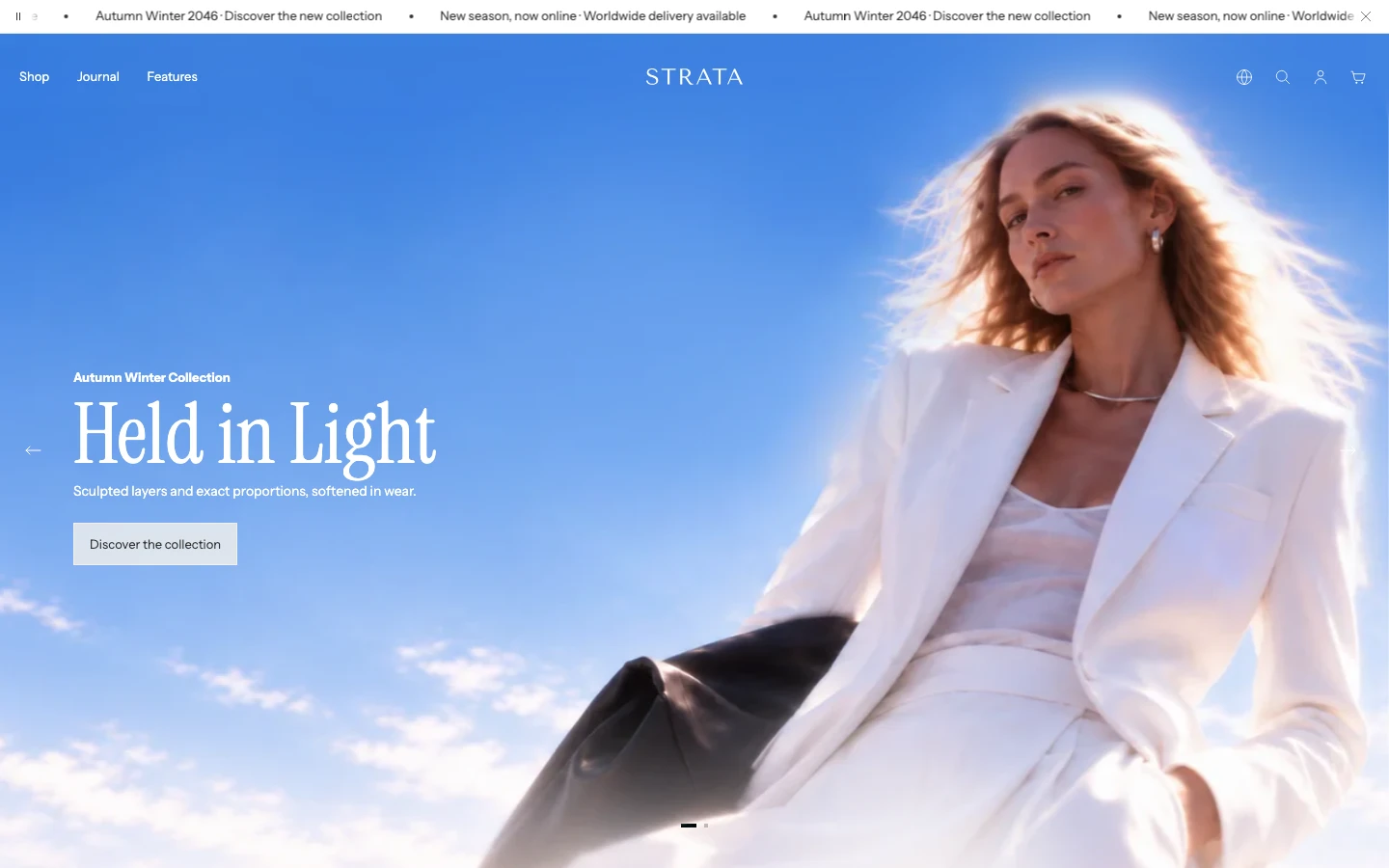
A Media hero at the top of the page can create an image-led opening and support the transparent Header.
Open the Home template
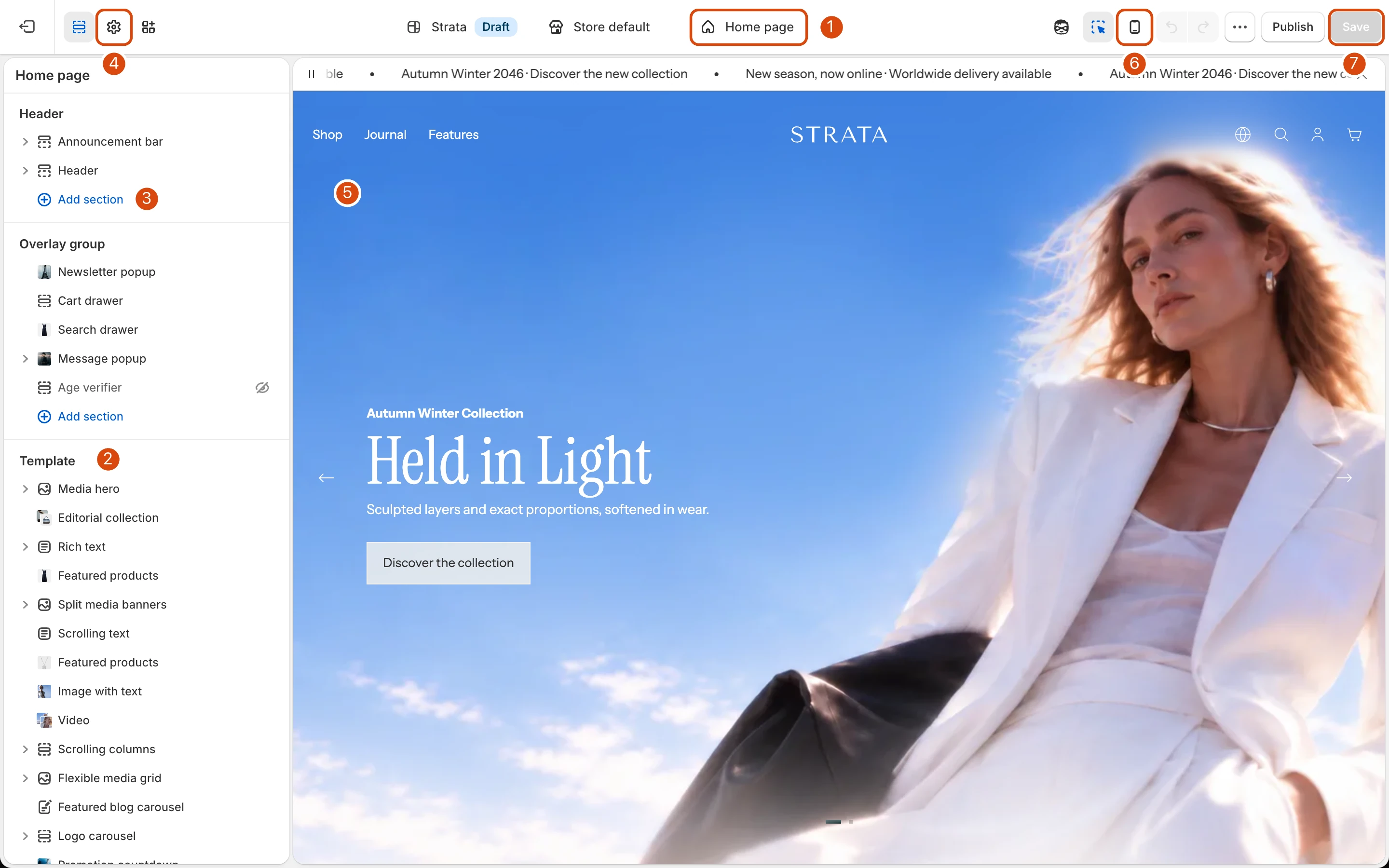
The Home page in the Theme Editor. See Getting started for what each numbered area does.
- From Shopify admin, go to Online Store > Themes > Edit theme.
- Use the page selector to open Home page.
- Select a section to edit it, or drag sections to change their order.
- Preview the full page at desktop and mobile widths before saving.
Build the page journey
Choose sections according to the role they play:
- Start with Media hero, Split media banners, or Video when the page needs a strong campaign opening.
- Use Featured products, Editorial collection, or Collections to move shoppers into products and collections.
- Add Rich text, Image with text, Flexible media grid, or Featured blog carousel for brand and editorial context.
- Use Promotion countdown only for a genuine time-limited campaign.
- Finish with FAQ or Newsletter when they answer a final question or offer a clear next step.
There is no required section order. Keep the page focused enough that each section introduces new information rather than repeating the same message.
Reorder, hide, duplicate, or remove
- Reorder sections when the customer journey should change without changing each section’s content.
- Hide a section when it may return later and its current settings should be preserved.
- Duplicate a supported section when the same structure is useful for different content. Review duplicate headings, links, and accessibility labels.
- Remove a section only when its saved content and settings are no longer needed.
- Add section to insert another available Strata section where it best supports the page journey.
Use each section's own controls before duplicating it for another device. For example, change Mobile media position inside Image with text rather than creating a second mobile-only section.
Header, overlays, and Footer
The Home template sits between the fixed groups:
- Header group appears before the first Home section.
- Overlay group contains popups and drawers that can appear over the page.
- Footer group follows the final Home section.
The first Home section is especially important when the Header uses a transparent state. The last section should also be reviewed together with Standard or Reveal Footer behavior.
Review before publishing
- Check that the first screen states the store’s current offer or story without depending on autoplay.
- Follow every call to action and remove temporary or placeholder destinations.
- Review repeated product sections for duplicated products or headings.
- Check media crops, block order, forms, carousel controls, and section spacing at desktop and mobile widths.
- Test the page with reduced motion, keyboard navigation, and slow-loading media.
- Confirm hidden sections, disabled blocks, and draft copy are intentional.