
Promotion countdown combines campaign copy, optional media, a call to action, and a live countdown. Use it for a genuine offer or event with a clear end time rather than as a permanent urgency message.
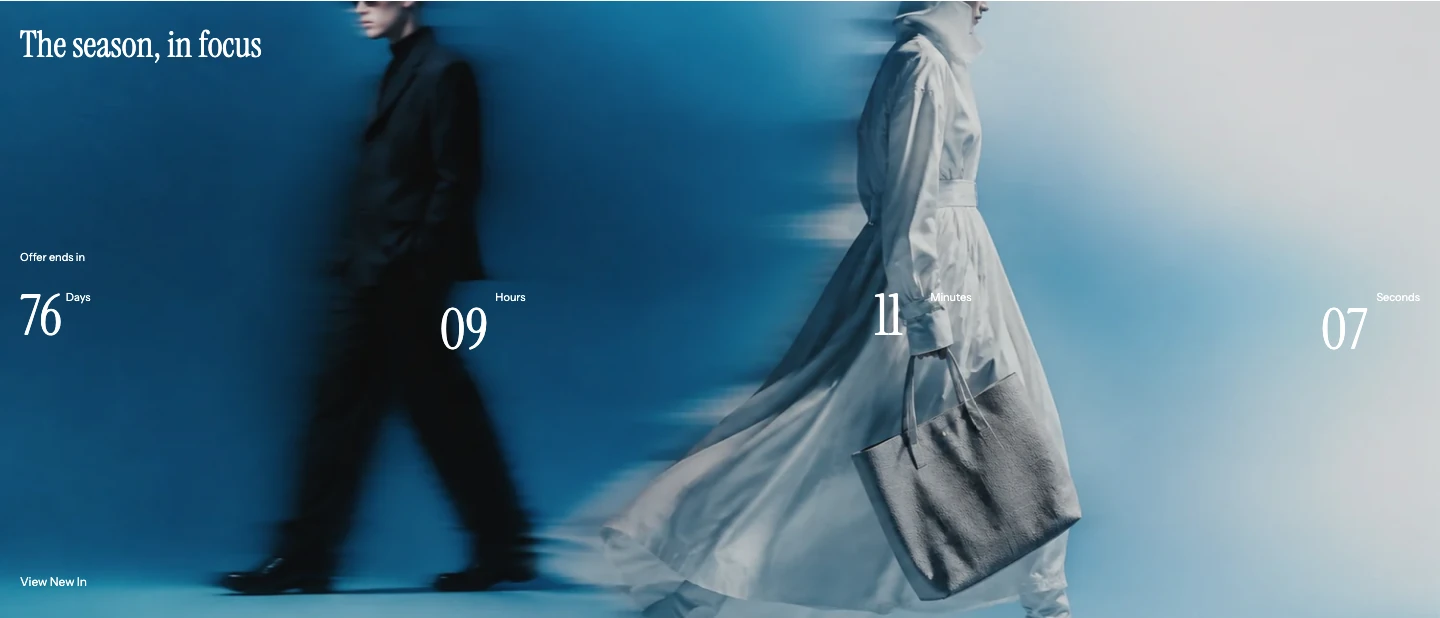
Promotion countdown on desktop.
Add a Promotion countdown
- In the Shopify Theme Editor, open a compatible template.
- Select Add section > Promotion countdown.
- Add the campaign content and a valid End date and time.
- Preview the section before, at, and after the intended deadline before publishing.
Content
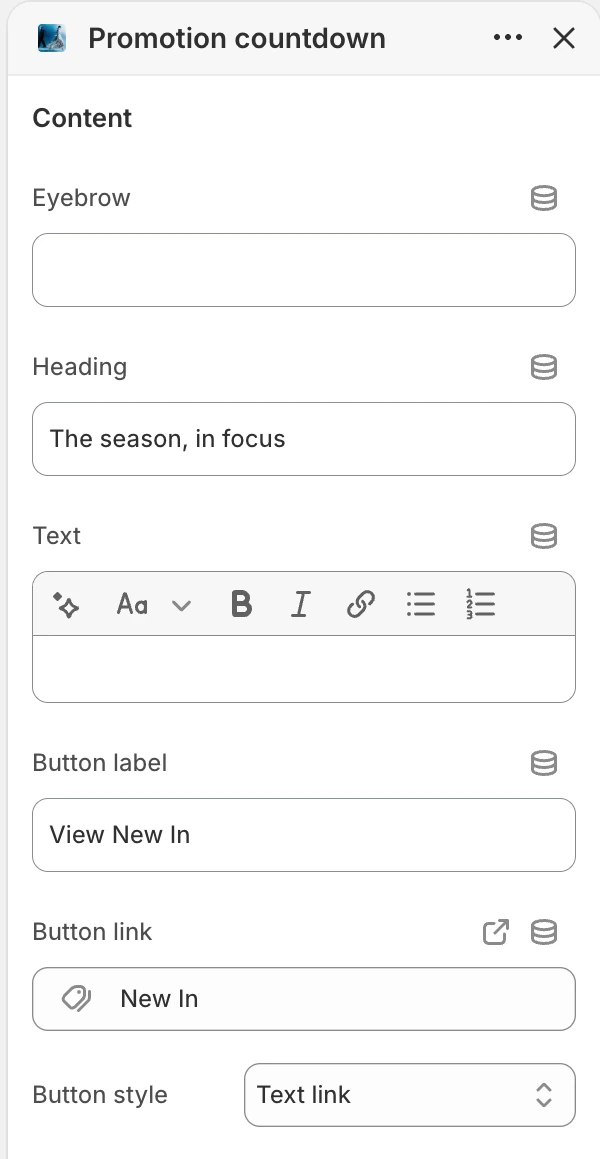
The Content group in the Theme Editor. The values shown are examples, not defaults.
| Setting | What it controls | Default or use |
|---|---|---|
| Eyebrow | Short supporting text above the heading. | Optional. |
| Heading | Main campaign message. | Limited time offer |
| Text | Supporting rich text. | Optional. Keep the deadline and offer terms understandable without relying on the timer alone. |
| Button label | Visible call-to-action text. | Optional. |
| Button link | Destination for the call to action. | Add a valid destination when a button label is present. |
| Button style | Visual treatment for the action. | Primary, Secondary, or Text link; default Primary. |
Countdown
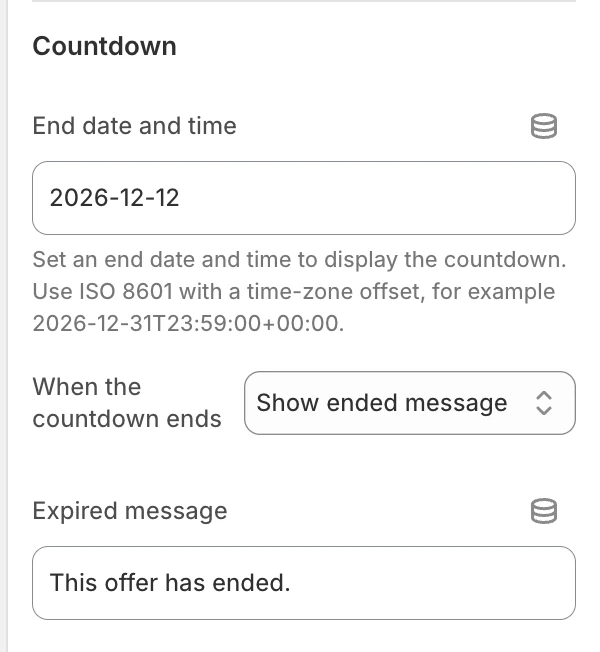
The Countdown group in the Theme Editor.
End date and time
Enter the deadline in ISO 8601 format and include its timezone offset, for example 2026-12-31T23:59:00+00:00. The offset makes the deadline unambiguous for shoppers in different locations.
There is no preset future deadline. Enter a valid End date and time, then preview the countdown before publishing. Include the deadline in the campaign copy so shoppers can understand the offer without relying on the timer.
When the countdown ends
Choose what happens at the deadline:
- Show ended message replaces the countdown with Expired message.
- Hide section hides the section on the storefront once the deadline passes. The check runs in each visitor's browser against their device clock, and the section stays in the template. In the Theme Editor it remains visible with the expired message so you can still edit it; remove it from the template when the campaign is over.
The default is Show ended message. The default expired message is This offer has ended. Use wording that makes the offer state clear without implying that a completed promotion is still available.
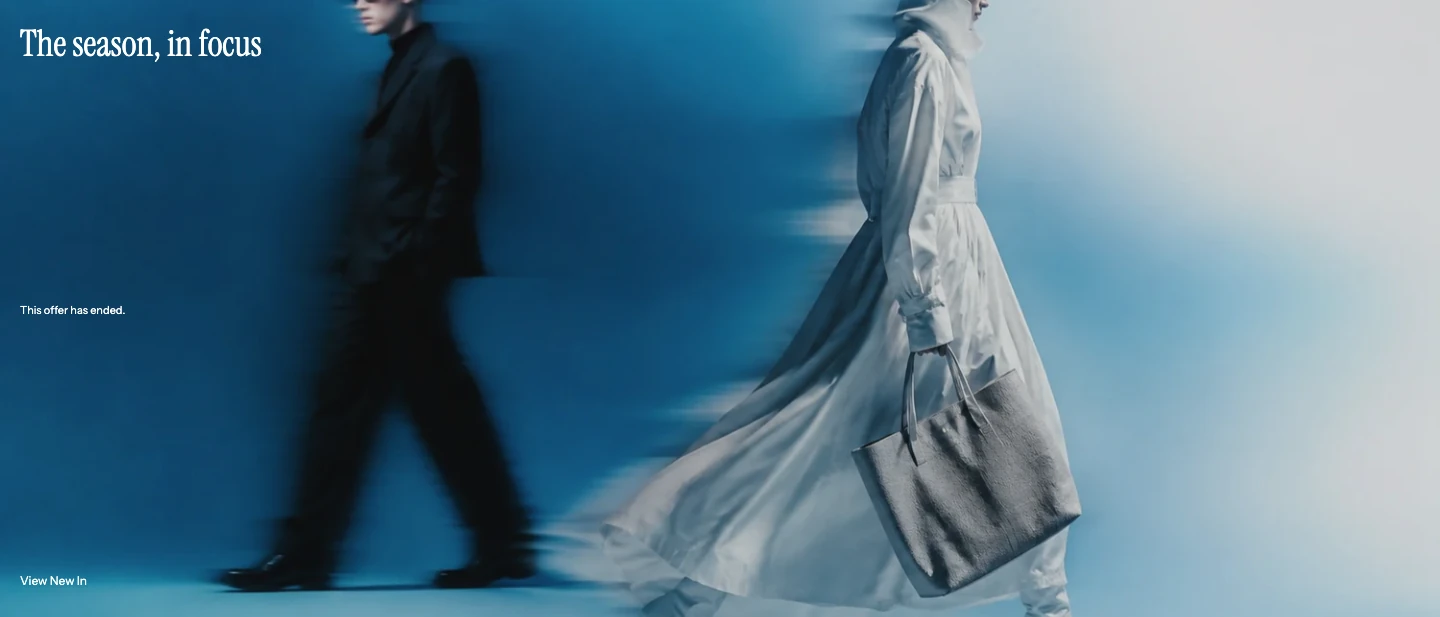
When the countdown ends: Show ended message.
Media
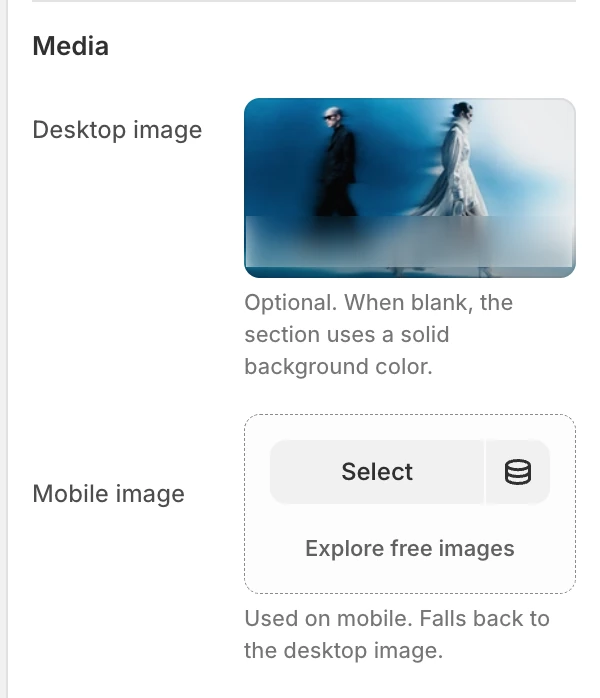
The Media group in the Theme Editor.
| Setting | What it controls | Default or use |
|---|---|---|
| Desktop image | Main wide-screen campaign image. | Optional. When blank, a supplied Mobile image can still be used as the media source. |
| Mobile image | Image used on narrow or portrait screens, including tablets held vertically. | Optional. When blank, the desktop image is used. When both image fields are blank, the banner uses its solid background color. |
Layout
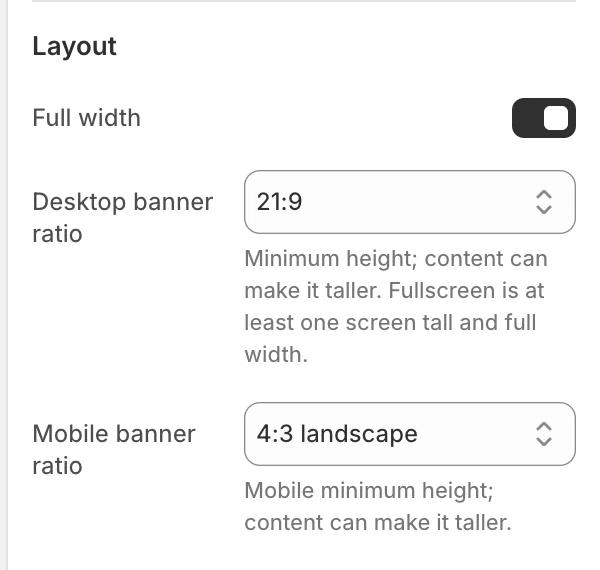
The Layout group in the Theme Editor.
| Setting | Options and behavior |
|---|---|
| Full width | On by default. Turn it off to constrain the complete banner, including its background image or color; the contained banner follows global Enable rounded UI. Full-width banners remain square. |
| Desktop banner ratio | Fullscreen, Natural, 16:9, 2:1, 21:9, 3:1, or 32:9; default 3:1. The selected ratio sets a minimum height, and longer content can make the banner taller. |
| Mobile banner ratio | Fullscreen, Square, 4:3 portrait, or 4:3 landscape; default 4:3 landscape. The selected ratio sets a minimum height, and longer content can make the banner taller. |
Choose the desktop and mobile ratios separately. Natural follows the available image shape on desktop; fixed ratios keep the banner shape consistent but may crop the image. Preview both screen sizes before publishing.
Choosing Fullscreen for desktop or mobile makes the banner at least one screen tall and full width at that screen size, even when Full width is off for the other presentation.
Motion and controls
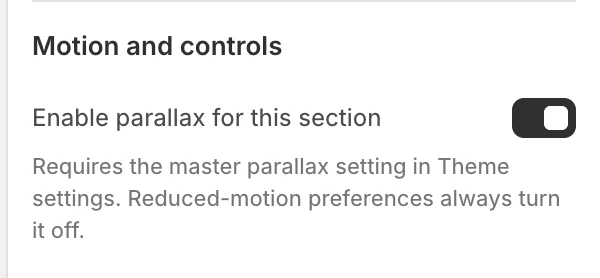
The Motion and controls group in the Theme Editor.
Enable parallax for this section is on by default. It works only when the global Enable parallax effects setting is also on, and reduced-motion preferences disable the effect. The countdown remains useful when parallax is unavailable.
Colors
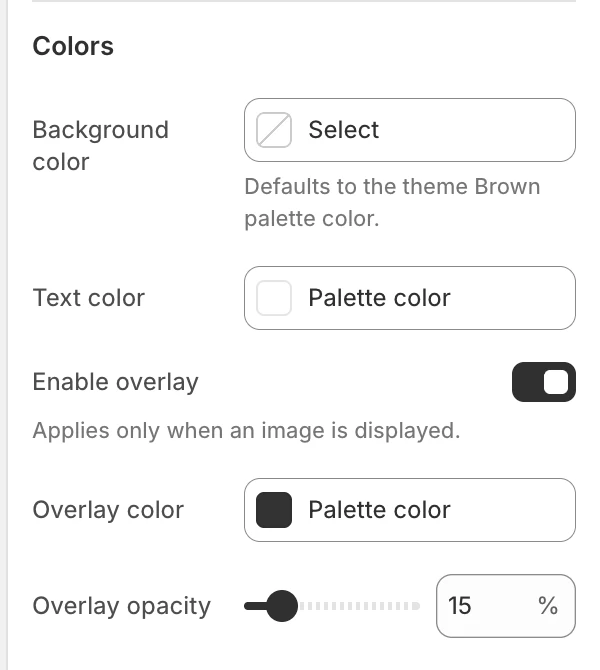
The Colors group in the Theme Editor.
| Setting | Options and behavior |
|---|---|
| Background color | Used when no image is available and around the media and content. Default: the last color in the theme palette (a warm brown, #8A6A32, unless you change the palette). |
| Text color | Controls the campaign copy and countdown text. Default: #FFFFFF. |
| Enable overlay | Adds a contrast layer when an image is displayed. Default: On. |
| Overlay color | Sets the image overlay color. Default: #000000. Shown when Enable overlay is on. |
| Overlay opacity | Sets the image overlay strength from 0–100%; default 30%. Shown when Enable overlay is on. |
Check the heading, timer, expired message, and button against both the media and fallback background. Do not use the timer as the only way to communicate when the offer ends.
Spacing
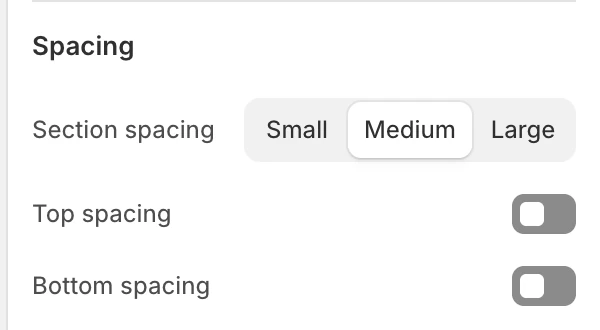
The Spacing group in the Theme Editor.
Section spacing uses Small, Medium, or Large, with Medium as the default. Top spacing and Bottom spacing are both enabled by default.
Desktop and mobile behavior
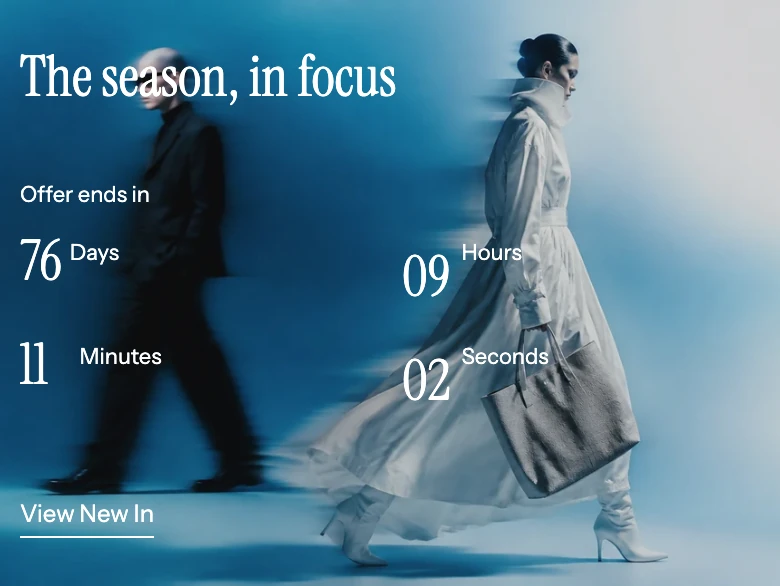
On mobile the timer wraps into two rows.
Supply a mobile image when the desktop crop hides the subject or leaves insufficient room for the copy. Review the longest timer labels, campaign text, and call to action at both sizes. The mobile image falls back to the desktop image when blank.
Common issues
| Symptom | Safe check |
|---|---|
| The countdown is invalid | Include the full date, time, and timezone offset in End date and time. |
| The image crop is unclear on a phone or portrait tablet | Add a dedicated Mobile image rather than forcing the desktop composition into a narrow or portrait frame. |
| The banner shows only a solid color | Add Desktop image or Mobile image. When both are blank, the solid background is intentional. |
| Overlay changes have no visible effect | Confirm an image is displayed and Enable overlay is on. The overlay does not affect the solid-color state. |
| The section remains visible after expiry | Confirm When the countdown ends is set to Hide section and review the storefront after the deadline. |
| Parallax does not move | Check both the section toggle and global Enable parallax effects, then check the device's reduced-motion preference. |
| The button is missing | Add both a meaningful Button label and the intended Button link. |