
The Page section displays a Shopify page's title and body content. Use it as the main content of a Page template, or add it to another compatible template when existing page content should appear inside a larger layout.
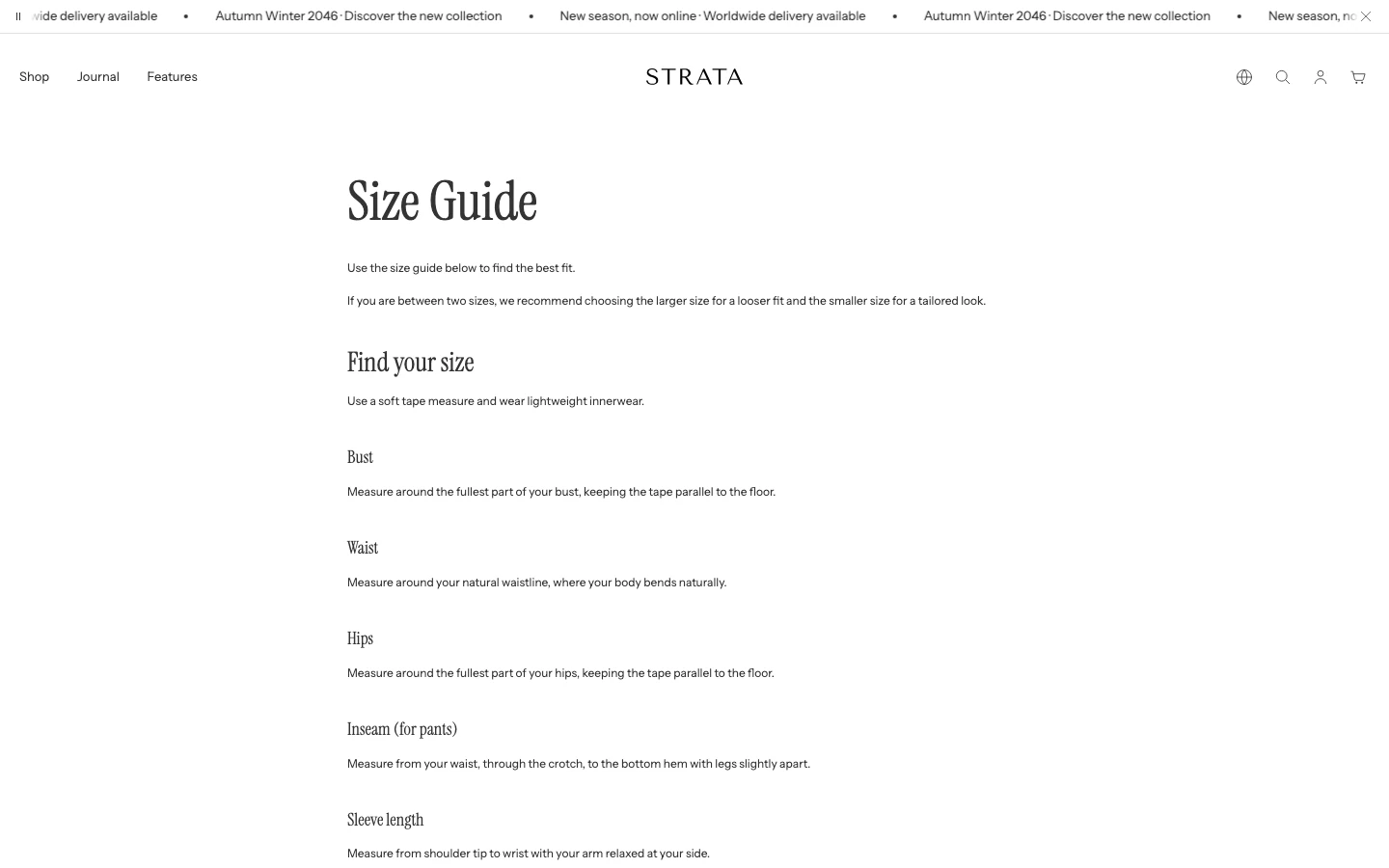
The Page section showing a Size guide page from the Shopify admin.
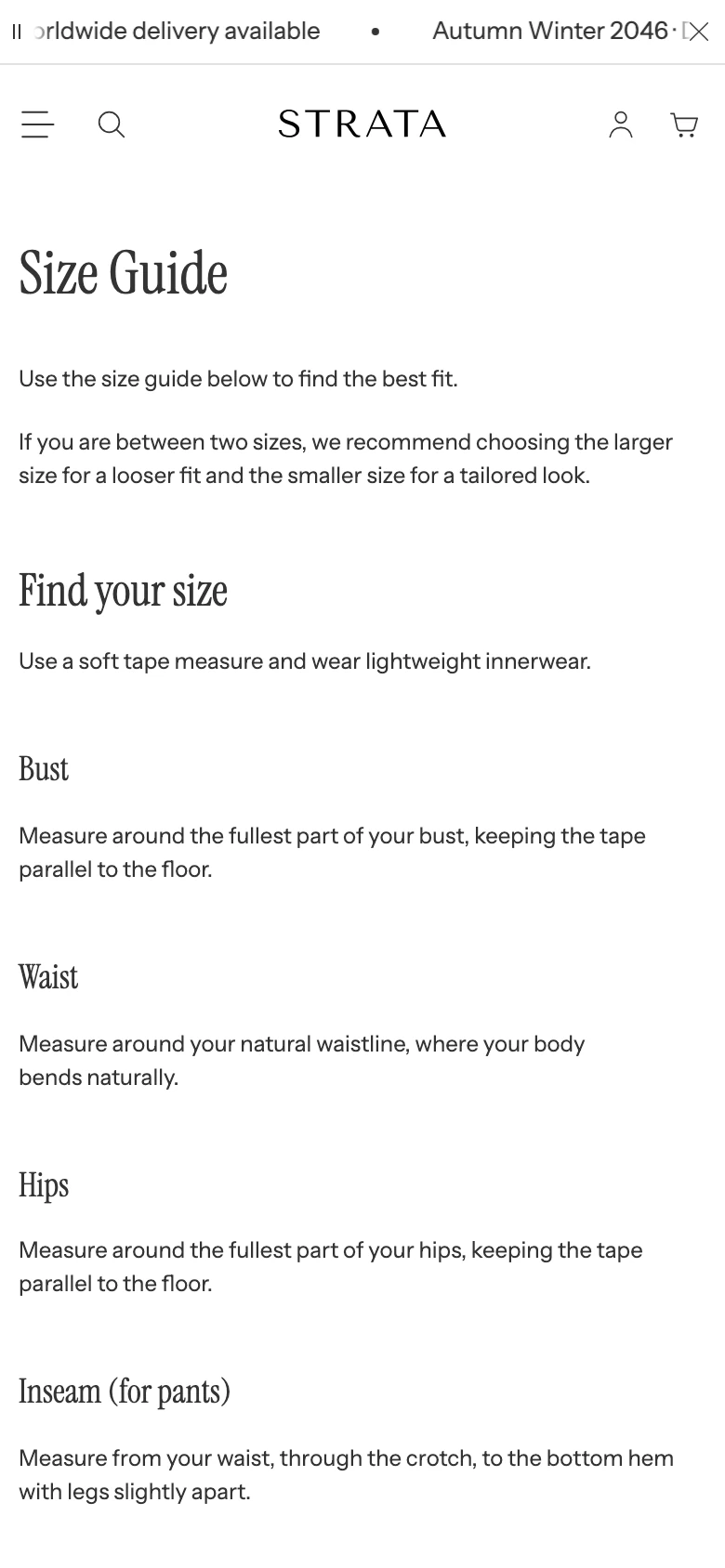
The same page on mobile.
Add or open Page
- Open Online Store > Themes > Edit theme.
- Use the page selector to open the template you want to edit.
- Select the existing Page section, or choose Add section > Page.
- Choose the page content, layout, and spacing, then preview the result at desktop and mobile sizes.
The section is not available inside the Header or Overlay groups.
Content
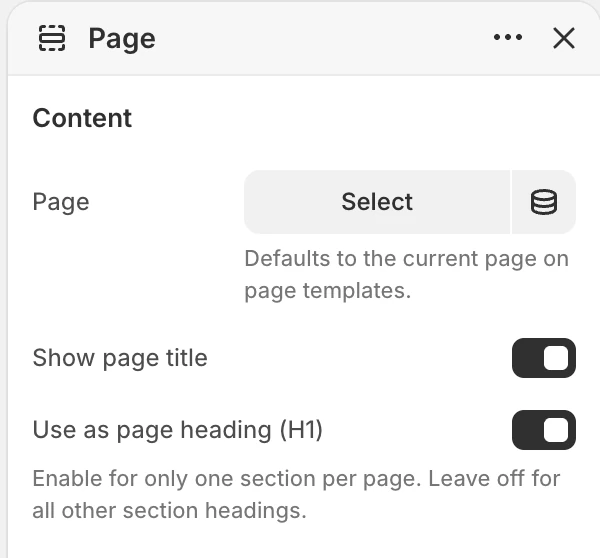
The Content group in the Theme Editor. The values shown are examples, not defaults.
Page
Chooses the Shopify page whose content is displayed.
- On a Page template, leaving Page blank uses the page currently being viewed. This lets one template serve every Shopify page assigned to it.
- On another compatible template, select a specific Page. When this field is blank, the section has no page content to display.
Edit the selected page's title and body under Online Store > Pages. The Theme Editor controls how that content is presented; it does not replace the page editor.
Show page title
Shows the selected page's title above its body content. The default is on.
Keep it enabled when the Page section supplies the main heading. If another section already provides the visible page heading, turn it off and confirm that the finished page still has one clear main heading.
Use as page heading (H1)
Makes the page title the main title of the page. The default is Off. Turn it on here only when Show page title is on and no other section provides the main title.
Layout
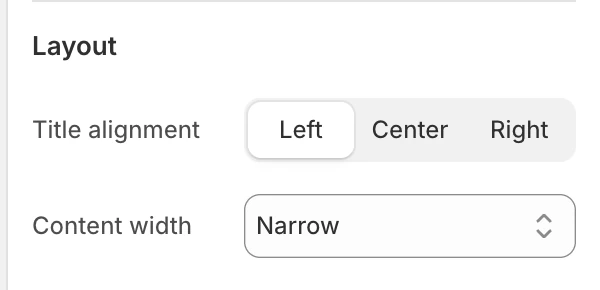
The Layout group in the Theme Editor.
| Setting | Options and use |
|---|---|
| Title alignment | Left, Center, or Right. Default: Left. Aligns the title without changing the page body text. |
| Content width | Narrow, Wide, or Page width. Default: Narrow. Use Narrow for long-form reading, Wide for richer editorial content, or Page width when the body should align with the widest standard content area. |
Spacing
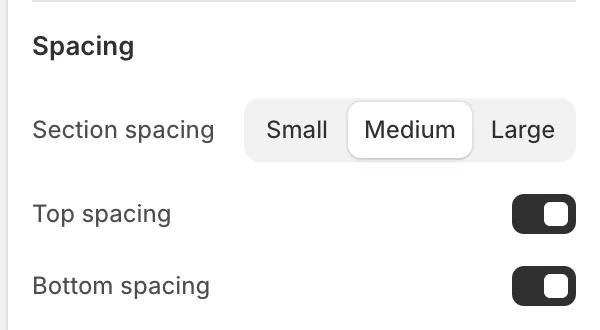
The Spacing group in the Theme Editor.
| Setting | Options and default |
|---|---|
| Section spacing | Small, Medium, or Large. Default: Medium. |
| Top spacing | Adds or removes the section's top spacing. Enabled by default. |
| Bottom spacing | Adds or removes the section's bottom spacing. Enabled by default. |
To remove space at one edge, turn off the corresponding Top or Bottom spacing control. Choose the spacing size for the edge that remains.
Reusing page content
Use one Shopify page as the source when the same approved content should appear in more than one template. Updating that page updates every Page section that selects it.
Use a separate Page when the content needs its own URL or independent editing. Use Rich text instead when the copy belongs only to one template and should be edited directly inside that section.
Common issues
| Symptom | Safe check |
|---|---|
| The section is empty | On a non-Page template, choose a Shopify page in Page. On a Page template, confirm the current page has body content. |
| The wrong content appears | Check which Shopify page is selected, then edit that page under Online Store > Pages. |
| The title appears twice | Turn off Show page title in one section, or remove the other heading after confirming the page keeps one clear main heading. |
| The body is difficult to read | Change Content width to Narrow or Wide and review the longest paragraphs on desktop and mobile. |